

Conditions
Define what you are measuring, with its type, unit, waste and cost, and reuse conditions across estimates with templates.
A condition is one thing you are taking off: “2-inch main line”, “Concrete slab”, “Cleanouts”. It sets the kind of measurement, the unit, the color it draws in, the waste you allow and what a unit costs. Every measurement you draw belongs to a condition, and the summary rolls quantities up by condition.
Conditions live on the estimate, so they are shared by every sheet and every plan set on that bid.
Where to find it
Section titled “Where to find it”The Conditions panel sits beside the sheet in the viewer. It groups conditions under their folder names and shows each one’s type and total so far.
Condition types
Section titled “Condition types”| Type | What it measures | Units |
|---|---|---|
| Linear | A length along a path, such as pipe or curb | LF, M |
| Area | A flat surface, such as a slab or a lawn | SF, SY, M2 |
| Count | Individual items you click, such as valves or lights | EA |
| Volume | A plan area times a slab depth | CY, CF, M3 |
| Wall area | A length times a wall height | SF, SY, M2 |
| Pitched area | A plan area times the slope factor for a pitch, for roofs and embankments | SF, SY, M2 |
You cannot change a condition’s type once it has measurements. Delete them first, or make a new condition.
Create a condition
Section titled “Create a condition”-
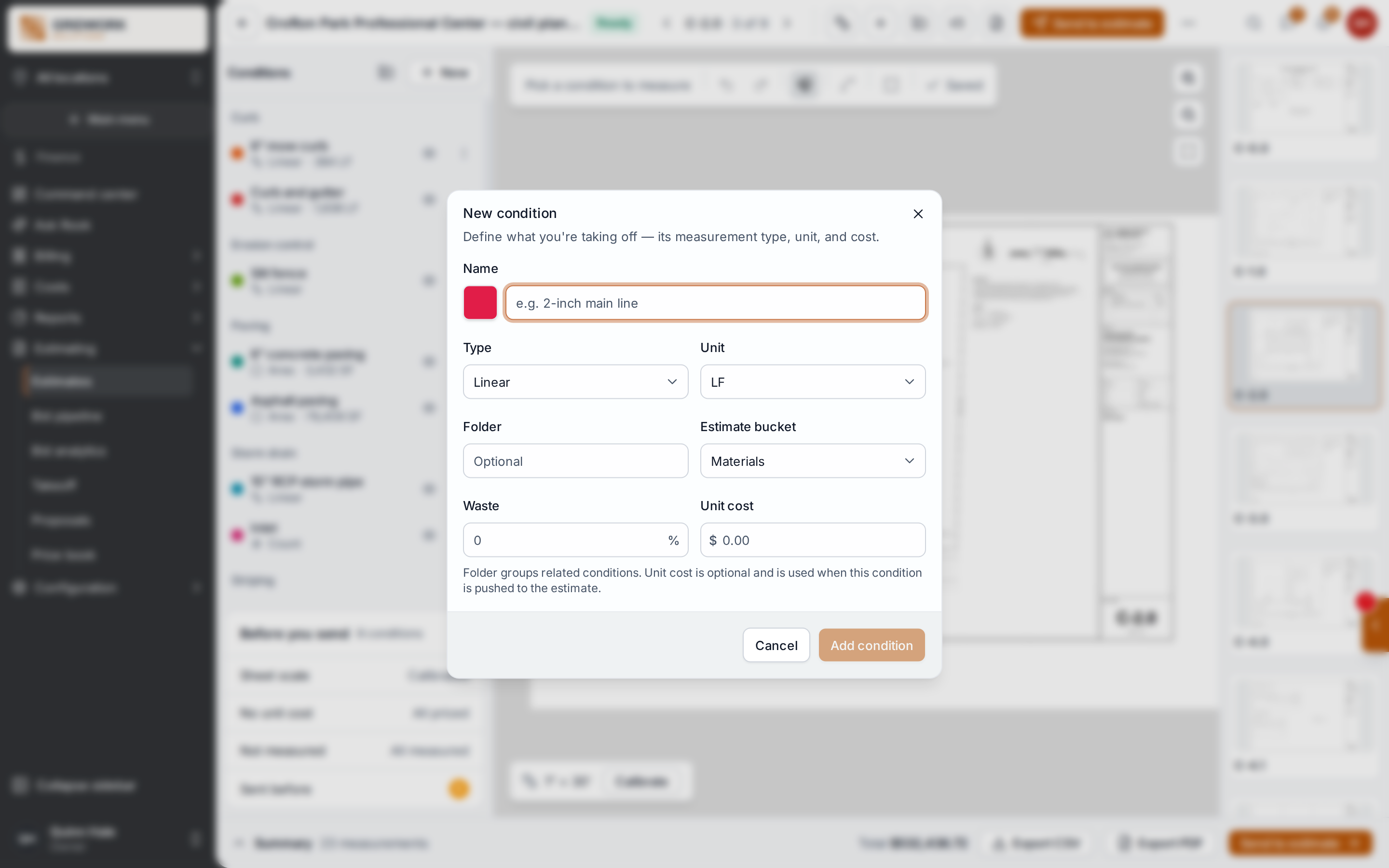
In the Conditions panel choose New. The New condition window opens over the drawing, which stays where it was. (The header also has a New condition button.)
-
Type a Name, for example 2-inch main line.
-
Pick the Type and the Unit. The units offered depend on the type.
-
Choose a color. Measurements of this condition draw in it on the sheet. For a Count condition also choose the Marker symbol: circle, square, triangle, diamond or cross.
-
Fill in the extra field a type needs: Slab depth for volume, Wall height for wall area, or Pitch (rise / run) for pitched area. These are required before you can measure with that condition.
-
Optionally set a Folder to group related conditions, a Waste percentage, an Estimate bucket (Materials, Labor, Equipment, Subcontractor or Other) and a Unit cost.
-
Select Add condition. Cancel closes the window; if you typed anything it asks before discarding it.
For sloped surfaces, see Measure sloped areas.
Edit, duplicate, lock or delete
Section titled “Edit, duplicate, lock or delete”Open the three-dot menu on a condition, labelled Condition actions.
- Edit opens the same window as Edit condition; Save changes re-measures the condition’s existing measurements if you changed something that affects them, such as the pitch or depth.
- Duplicate makes a copy to adjust.
- Lock freezes the condition and puts a padlock beside it. While it is locked, nobody can draw new measurements on it, change, move or delete the ones it has, edit its settings, or delete it. Unlock lifts the freeze. Locking and unlocking need Measure & manage conditions, the same as any other edit. Recalibrating a sheet still updates a locked condition’s quantities, because the scale belongs to the sheet.
- Delete removes the condition. A condition that still has measurements cannot be deleted until you delete those measurements first, a locked condition cannot be deleted until you unlock it, and a condition cannot be deleted along with locked measurements until those are unlocked.
The eye button on a row, Hide on sheet or Show on sheet, hides a condition’s measurements from the drawing without deleting them. Hidden measurements still count in the summary.
Templates
Section titled “Templates”A template is a saved condition you can bring onto any estimate.
- Save as template in a condition’s menu stores it for your company.
- Import from templates, the folder button on the panel or in the header, opens a list. Tick the ones you want and choose Import. Each is copied onto this estimate, so editing the copy does not change the template.
- With no templates saved, the list says No templates yet. Save a condition as a template to reuse it across estimates.
Good to know
Section titled “Good to know”- Waste is a percentage on top of the measured quantity. The summary shows both the raw and the final quantity. When you send to the estimate, the quantity goes as measured and the estimate applies waste once, in cost. See Summary and sending to the estimate.
- A condition with no Unit cost is flagged under Conditions with no unit cost and No unit cost before you measure and send.
- With no conditions the panel says No conditions yet. Add a condition to start measuring the drawing. Without edit access it says Conditions added here will appear on this sheet.