

Summary and sending to the estimate
Roll quantities up by condition, download a CSV, and send the takeoff to the estimate as priced lines.
The summary adds up every measurement by condition so you can check the quantities and prices before they go anywhere. When they look right, send them to the estimate.
Where to find it
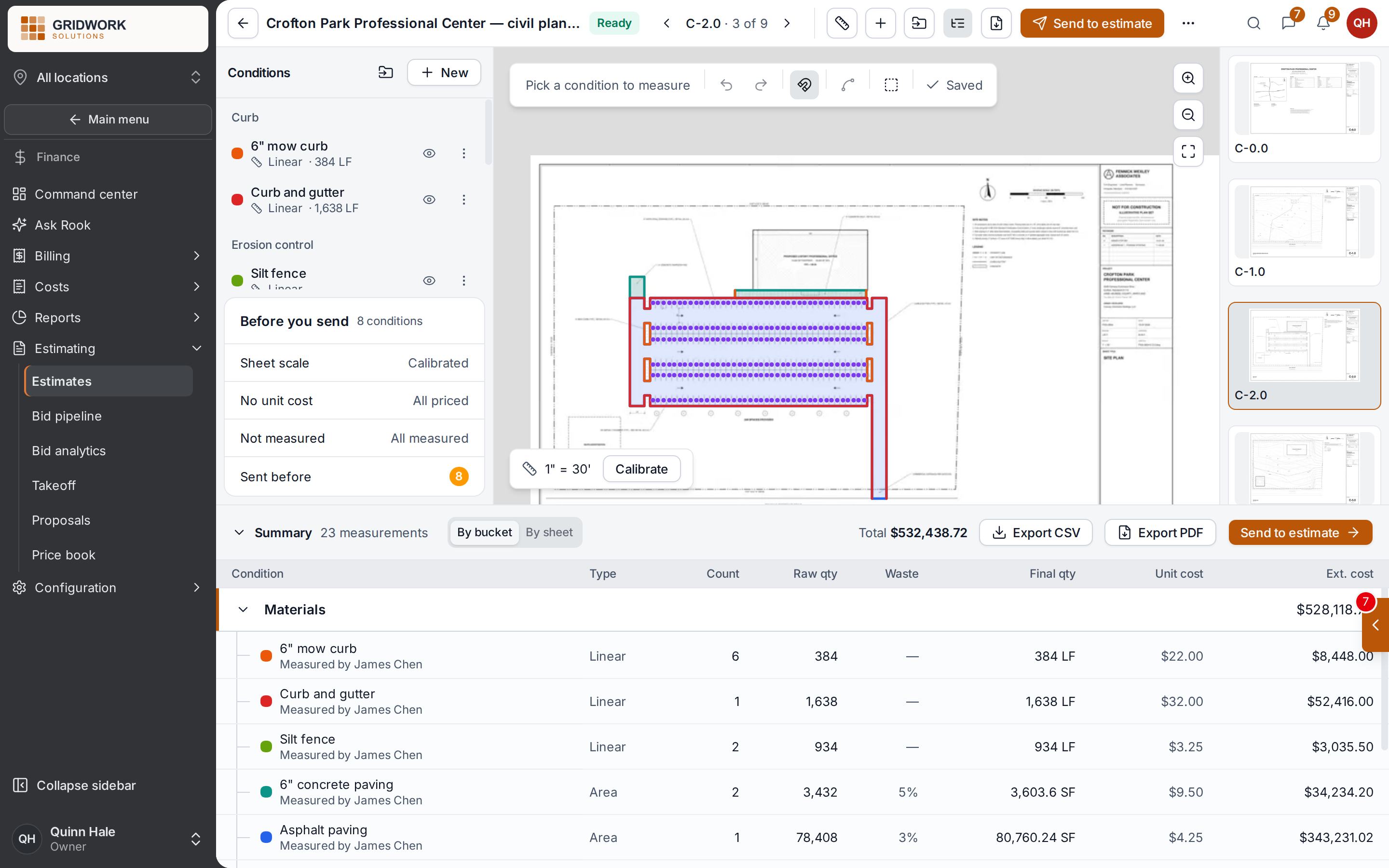
Section titled “Where to find it”The Summary bar runs along the bottom of the viewer. Open it with the Summary button in the header, by selecting the bar, or with S. The bar always shows the Total and how many measurements there are.
Read the summary
Section titled “Read the summary”The table has one row per condition: Condition, Type, Count, Raw qty, Waste, Final qty, Unit cost and Ext. cost. Raw qty is what you measured; Final qty is the raw quantity plus the condition’s waste; Ext. cost is the final quantity times the unit cost.
- By bucket groups rows under Materials, Labor, Equipment, Subcontractor and Other, with a subtotal for each.
- By sheet groups the same rows by the sheet they were measured on.
- Select a row to arm that condition and highlight its measurements on the sheet.
- Pitched-area rows show their pitch and slope factor under the name, for example Pitch 6/12, slope ×1.118. Their quantity is the sloped surface, not the plan area.
Export CSV downloads the table.
Send to the estimate
Section titled “Send to the estimate”-
Check Before you send beside the conditions: Sheet scale, No unit cost, Not measured and Sent before each count what needs a look.
-
Choose Send to estimate. The button shows how many conditions are ready to send, and is disabled until you have measured something (Measure something first).
-
In Send to estimate, set the Section name (it starts as Takeoff). Each ticked condition becomes one line in a new section of the estimate.
-
Review the table of Condition, Description, Bucket and Unit cost. Conditions that have measurements are ticked for you. Untick one to leave it out, and edit a line’s description, bucket or cost before it goes.
-
Choose Send n to estimate. You get a message saying how many lines were added to the estimate.
Quantities go across as measured. The estimate applies each condition’s waste once, in the cost, so waste is never added to the quantity twice.
A condition you have already sent is marked Already pushed and is not ticked. To send it again anyway, tick it and then tick Duplicate already-pushed conditions; it goes in as a second line.
Good to know
Section titled “Good to know”- Sending creates new lines in a new section. It never changes lines already on the estimate.
- A condition with no measurements shows a quantity of 0 and is not ticked.