

Export marked-up PDF
Produce a PDF of selected sheets with your measurements drawn on them, to send to subs and suppliers.
A marked-up PDF is the plan sheets you choose with every measurement drawn over them in its condition’s color. It is for sending to a sub or a supplier so they can see exactly what you measured.
Where to find it
Section titled “Where to find it”In the viewer, use the Export marked-up PDF button in the header, or Export PDF on the summary bar.
Export sheets
Section titled “Export sheets”-
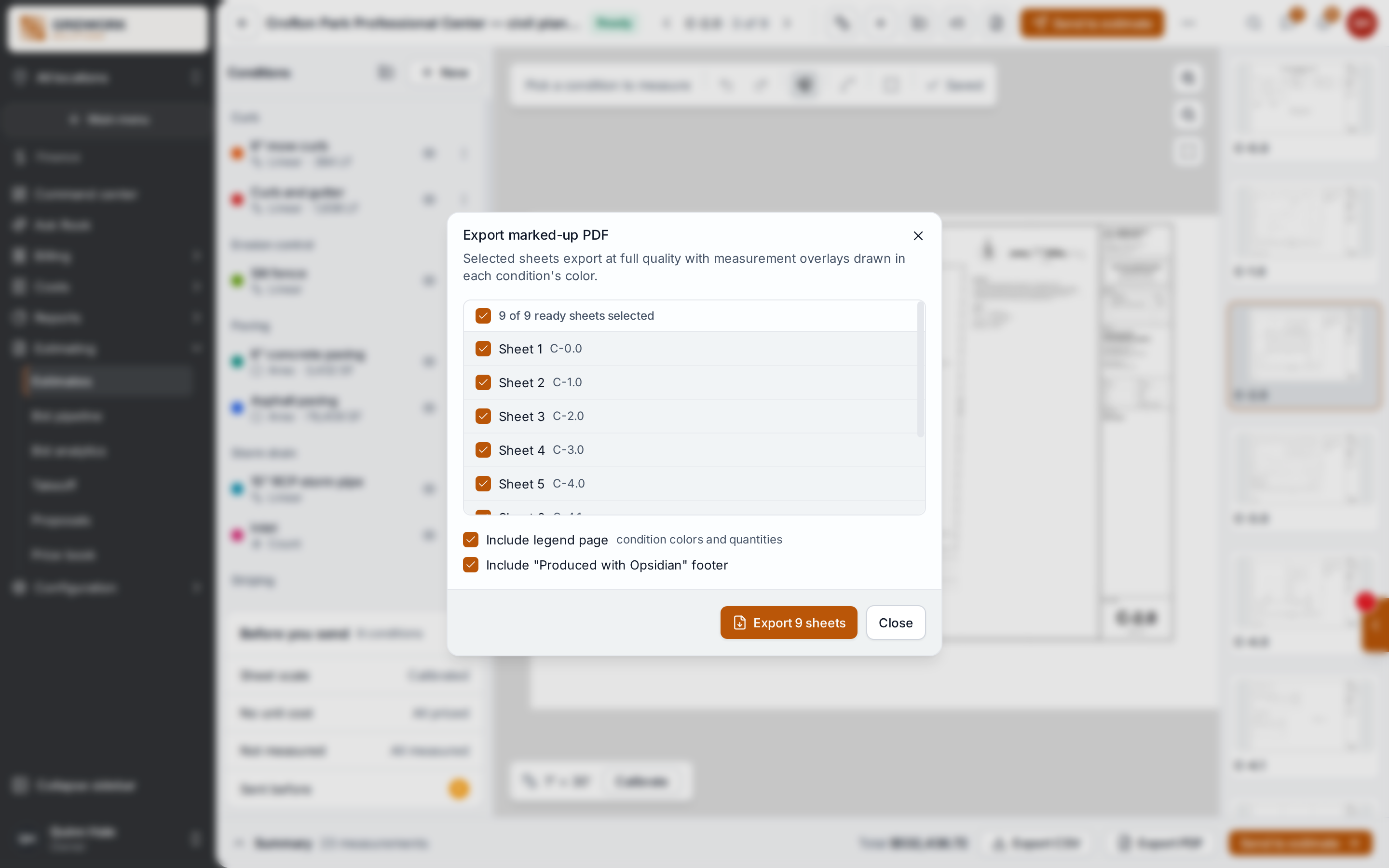
Open Export marked-up PDF. It lists the plan set’s sheets. Sheets that are still processing are greyed out and show their state, since only Ready sheets can be exported.
-
Tick the sheets to include, or tick the box at the top to select all ready sheets. The count reads, for example, 3 of 12 ready sheets selected.
-
Choose whether to Include legend page, which adds a page of condition colors and quantities, and whether to Include “Produced with Opsidian” footer.
-
Select Export n sheets.
Sheets are exported at full quality, so a large selection takes a while. The export runs in the background: close the dialog and come back, or leave it open.
Recent exports
Section titled “Recent exports”The dialog lists your recent exports, newest first, with their state, how many sheets they hold and when you asked for them. A state is Queued, Processing, Ready or Failed. A failed export shows the reason. When one is Ready, choose Download.
Good to know
Section titled “Good to know”- With no sheets yet the dialog says No sheets to export yet.
- The exported PDF shows measurements as they were when you exported. Exporting again after you measure more gives you a new file.
- The quantities as a table are on the summary instead; use Export CSV there. See Summary and sending to the estimate.