

Sign in
Your first sign-in, resetting a forgotten password, and what to do when an invitation lands in your inbox.
Opsidian is invitation-only. You can’t create an account yourself — someone in your company invites you, you choose a password, and you’re in. Everything happens at login.opsidian.com.
Accept an invitation
Section titled “Accept an invitation”-
Open the invitation email and follow its link. The page checks the invitation (Checking your invitation…), then greets you by name: Welcome, <your name> — Choose a password to join <your company> on Opsidian.
-
Enter a Password of at least 8 characters, then the same password again under Confirm password.
-
Choose Create account. You’re signed in and taken straight into Opsidian.
If the password field turns red with This password has appeared in a data breach. Choose a different one., the password you chose is on a public list of leaked passwords. Pick a different one and choose Create account again; the same invitation still works. If the message also says the invitation has now been used, ask whoever invited you to send a fresh one.
If the page says Invitation not available, the link has expired or was already used. Ask whoever invited you to send a fresh one — links can’t be revived.
Sign in
Section titled “Sign in”-
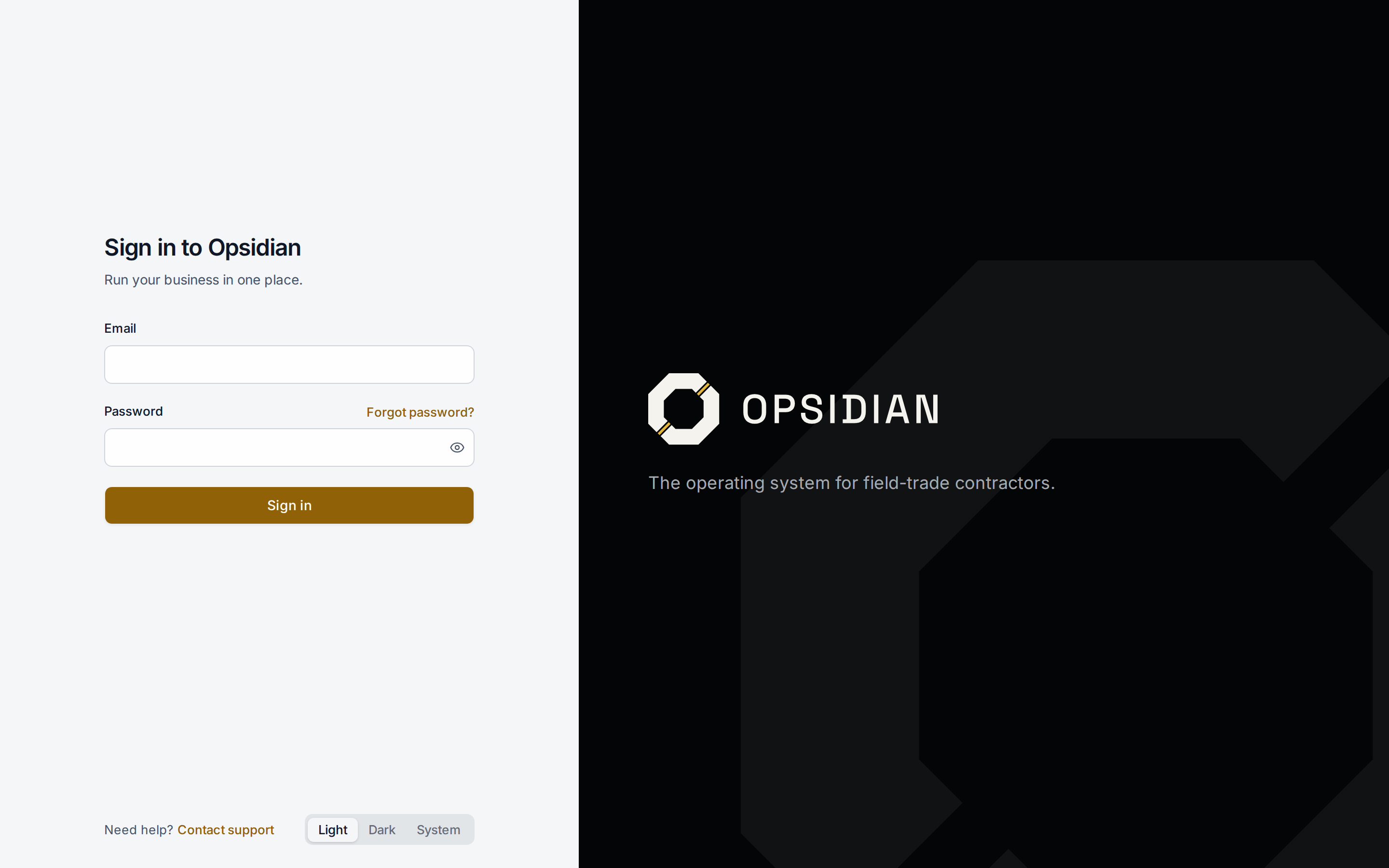
Go to login.opsidian.com. If you’re already signed in on this browser, you’ll skip the form and land in the app.
-
Enter your Email and Password. To check what you typed, choose the eye at the right of the password field. Choose it again to hide the password.
-
Choose Sign in. You land on your dashboard, or on the page you were trying to reach if you followed a link.
There’s no “remember me” box — your session simply stays alive on this browser until you sign out or it ends. When it ends you’re taken back to the sign-in page. If Opsidian ended it for one of these reasons, a note above the form says so:
| Note | What it means |
|---|---|
| You were signed out because your account was signed in on another device. Sign in again to continue here. | Your account can be signed in on one device at a time. Signing in somewhere else ended the session here. If that wasn’t you, sign in and change your password. |
| You were signed out after a period without activity. Sign in again to continue. | The session was left unused for too long, or reached its maximum length. Sign in again. |
If your account uses two-factor authentication
Section titled “If your account uses two-factor authentication”After your password, a second step appears: Two-factor authentication.
- Authenticator app — Enter the 6-digit code from your authenticator app. Type the code your app shows.
- Text message — We texted a 6-digit code to the number ending in 42. The text is sent as soon as this step opens. If it doesn’t arrive, choose Text me a new code; the button counts down for 30 seconds after each text before you can ask again.
Either way, the code is checked as soon as the sixth digit goes in, and a wrong code clears the boxes so you can try again. If you set up both, sign-in opens on your authenticator app; choose Text me a code instead to switch (or Use my authenticator app instead to switch back).
If your role requires two-factor authentication and you haven’t set it up yet, sign-in walks you through it before you get in: choose Text me a code to use your mobile number, or Use an authenticator app. Text-message codes only show up when your account can use them. You can also set it up any time from your account page.
| Message | What it means |
|---|---|
| That code is not valid. | The code was mistyped. Try again. |
| That code didn’t work or has expired. Check it, or text yourself a new one. | A texted code was wrong or more than a few minutes old. Choose Text me a new code. |
| We just sent a code. Wait a moment before asking for another. | You asked for a new text too soon after the last one. |
| We couldn’t send the text. Try again in a minute. | The text service didn’t accept the message. Wait, then choose Text me a new code. |
| Too many tries. Wait a few minutes and try again. | Too many codes or texts in a short time. Sign-in pauses for a while. |
| Your sign-in timed out. Sign in again. | The second step was left open for more than five minutes. Enter your password again. |
Messages you might see
Section titled “Messages you might see”| Message | What it means |
|---|---|
| Enter your email and password. | One of the two fields is empty. Fill in both, then choose Sign in again. |
| Invalid credentials | The email or password doesn’t match. Check for a typo, or reset your password below. |
| Account not yet approved | Your account exists but hasn’t been approved yet. Ask your admin. |
| Your account isn’t set up for an app yet — contact support to finish setup | Your account isn’t attached to a company plan. Contact support. |
| Could not reach the sign-in service — try again | A connection problem. Wait a moment and try again. |
Switch between light and dark
Section titled “Switch between light and dark”The sign-in pages follow your device’s light or dark setting. To choose for yourself, select Light or Dark at the bottom of the page. System goes back to following your device.
The choice is remembered on this browser. It is separate from the theme you pick inside Opsidian, which follows your account.
Reset a forgotten password
Section titled “Reset a forgotten password”-
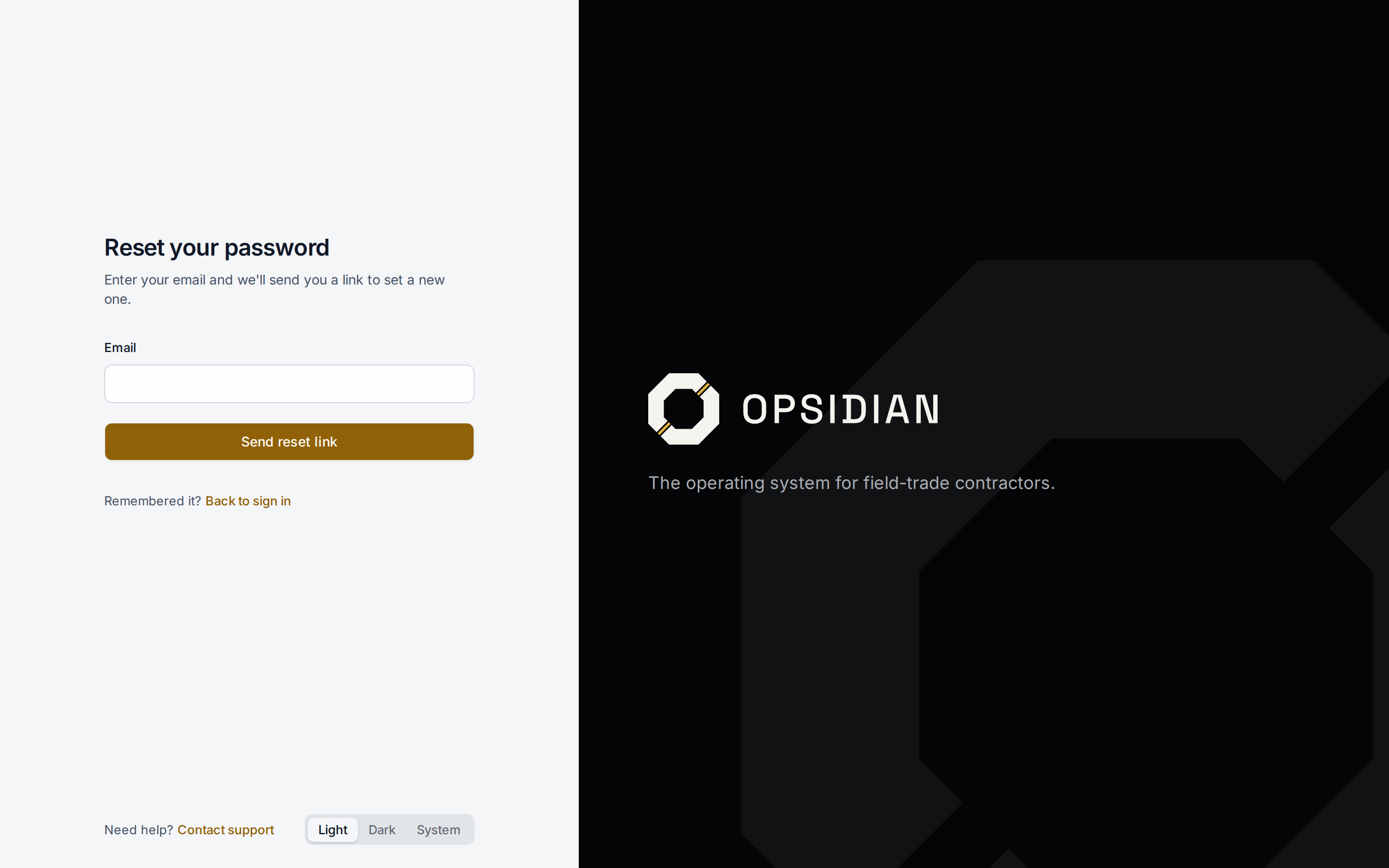
On the sign-in page, choose Forgot password? (to the right of the Password label).
-
Enter your Email and choose Send reset link. You’ll see Check your email — if an account exists for that address, a link is on its way. The link is valid for about an hour; check your spam folder if it doesn’t arrive.
-
Follow the link. On Choose a new password, enter a New password — at least 8 characters, with one special character — and repeat it under Confirm password.
-
Choose Save password. You’ll see Password updated. Setting a new password signs you out of every device, so sign back in with it.
If the page says This link is no longer valid, choose Request a new link and start again from step 2.
If the New password field turns red with This password has appeared in a data breach. Choose a different one., that password is on a public list of leaked passwords. Choose a different one and save again; the same link still works. If the message also says the link has now been used, request a new one.
Sign out
Section titled “Sign out”Open the user menu at the bottom of the sidebar (your name and avatar) and choose Log out. You’re returned to the sign-in page.
Need help?
Section titled “Need help?”Every sign-in page has a Contact support link at the bottom. Use it if you’re locked out and your admin can’t help.