

Plan sets and sheets
Upload a bid's drawings as a PDF, see how each sheet is processing, and open one to measure.
A plan set is the drawings for one bid, uploaded as a PDF. Each page of the PDF becomes a sheet. This page is where you upload plan sets, see how their sheets are coming along, and choose the sheet to measure.
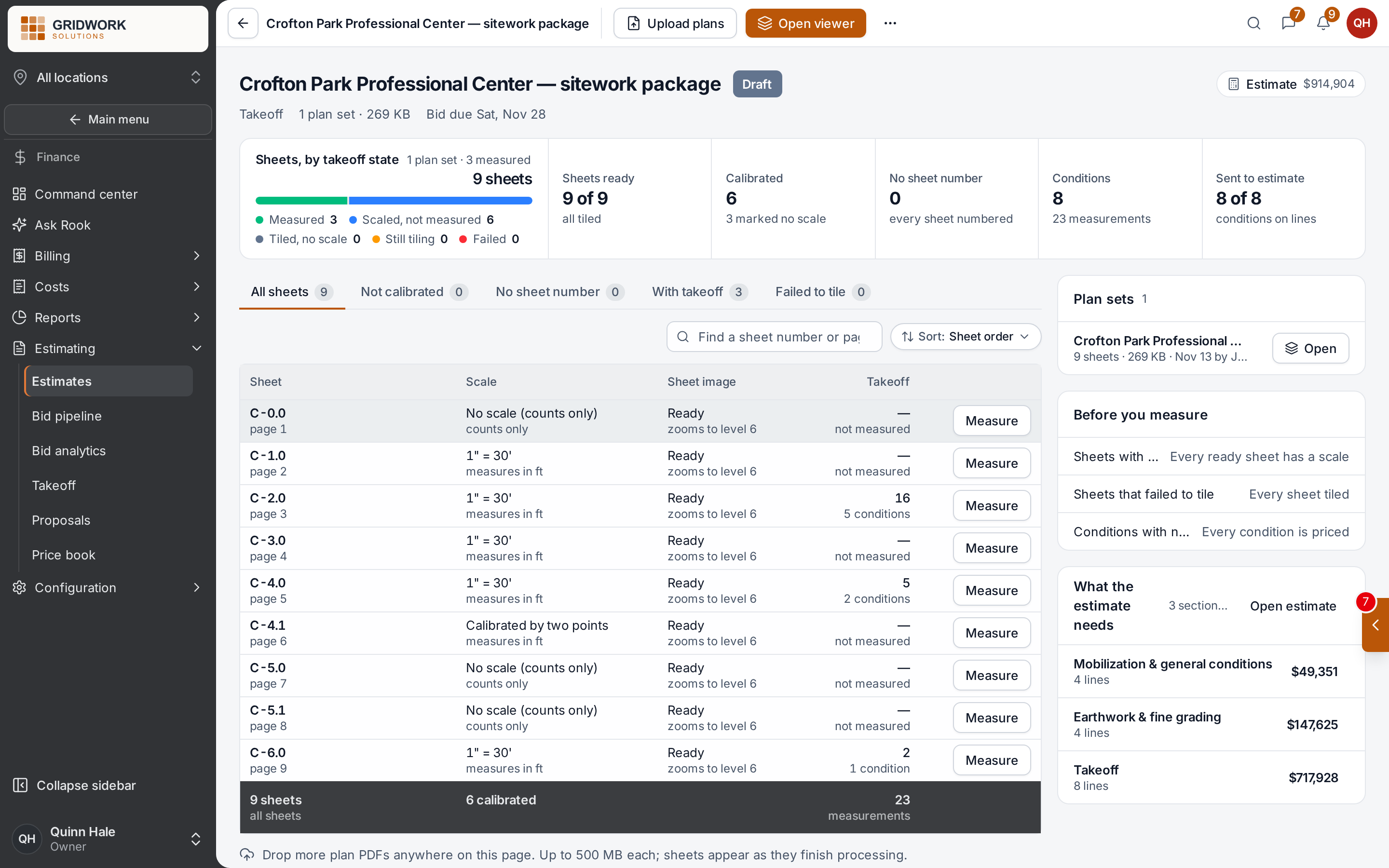
Where to find it
Section titled “Where to find it”Open Finance → Takeoff and choose Upload plans on a bid, or open a plan set’s row under Estimates with plans.
Upload a plan set
Section titled “Upload a plan set”-
Open the bid’s takeoff page and choose Upload plans. Or drop the PDF anywhere on the page.
-
Wait while the file is listed under Uploading as Uploading… and then Verifying….
-
When it finishes you see uploaded with the note Sheets appear as they finish processing. You can start measuring as soon as the first sheet is ready.
Export your drawings to PDF first: other file types are refused with Plan sets must be PDFs. You can drop several PDFs at once, and a bid can have more than one plan set.
Processing
Section titled “Processing”A plan set shows one of these states: Awaiting upload, Queued, Processing, Ready or Failed. Each sheet is prepared separately, so sheets become ready one by one and show Queued, Tiling, Ready or Failed in the Sheet image column. The page refreshes by itself while anything is still processing.
If a sheet fails, open the viewer and use Retry this sheet’s tiles from the page menu. A plan set that fails as a whole shows the reason beside it.
Choose a sheet
Section titled “Choose a sheet”The sheet list has these columns: Sheet, Scale, Sheet image and Takeoff. The scale reads as the preset you chose, Calibrated by two points, No scale (counts only), or Not calibrated.
- The tabs filter the list: All sheets, Not calibrated, No sheet number, With takeoff and Failed to tile.
- Search with Find a sheet number or page, and Sort by Sheet order, Most measured or Sheet number.
- The button at the end of each row says Set scale for a sheet with no scale, Measure for one that has one, and Open to retry for a failed one. Clicking the row opens the sheet in the viewer.
- Open viewer at the top opens the first ready plan set.
The side cards show your Plan sets, a Before you measure checklist (Sheets with no scale, Sheets that failed to tile, Conditions with no unit cost) and What the estimate needs, which lists the estimate’s sections so you can see what the takeoff should feed.
Rename or delete a plan set
Section titled “Rename or delete a plan set”Open the page menu. Rename plan set name… opens Rename plan set. Delete plan set name… asks you to confirm, because it removes the plan set and its sheets from the estimate and measurements made on it stop showing. An admin can recover a deleted plan set within 30 days.
Good to know
Section titled “Good to know”- A PDF can be up to 500 MB and 500 pages.
- A sheet is named by the sheet number found on the drawing. When there is none it shows as Sheet and its page number with no number on file, and the No sheet number tab collects those sheets.
- The page menu also has Open estimate, Open job (when the estimate has one) and All takeoff.