

Your dashboard
What the dashboard shows, from projected profit and receivables to what needs your move this week.
The dashboard is the first page you see after signing in. It is a fixed page, built from your company’s live numbers and limited to what your role can see, so an owner’s dashboard and a crew lead’s dashboard look different by design.
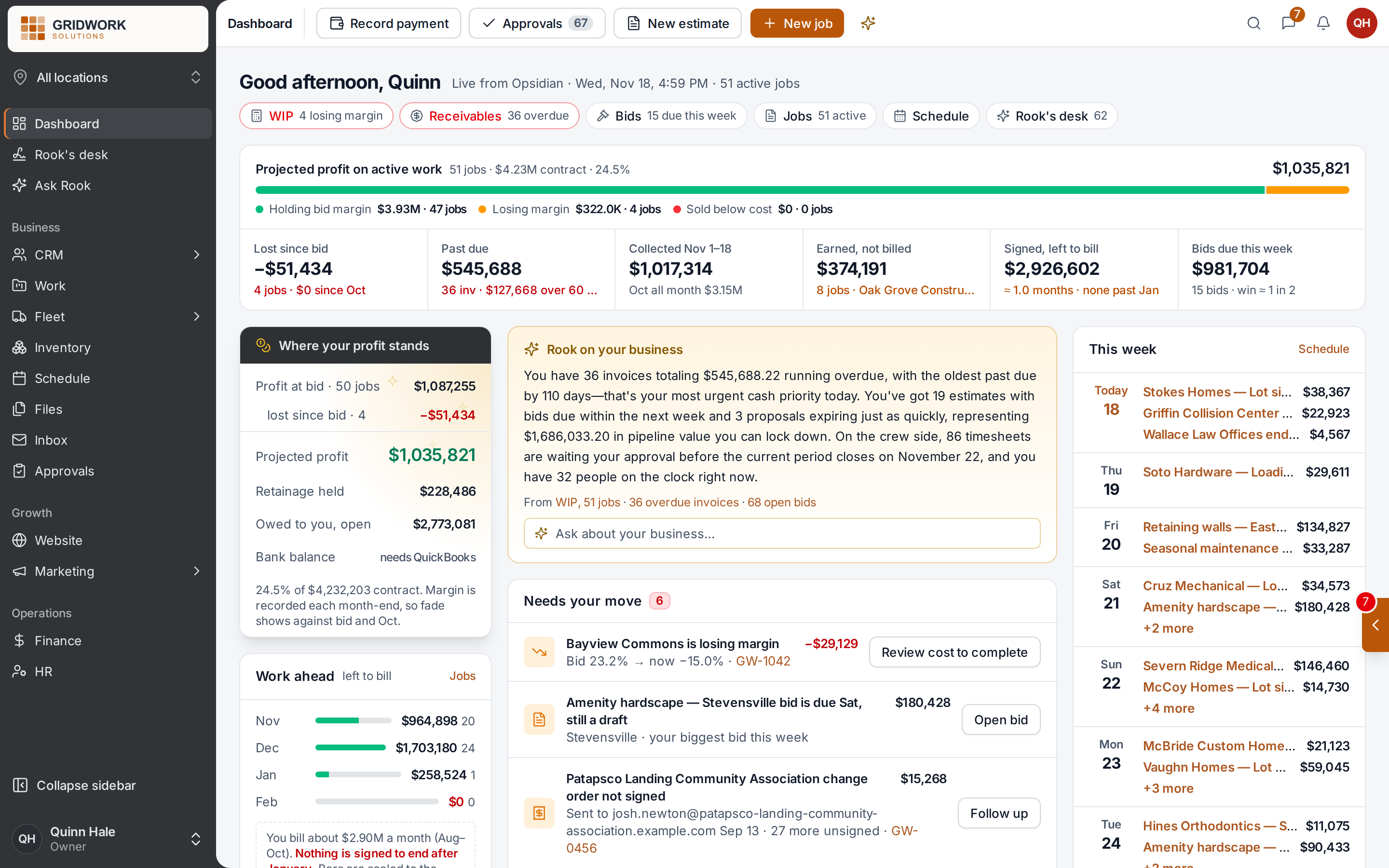
The owner’s dashboard
Section titled “The owner’s dashboard”If your role can see job costs and job financials, the dashboard leads with money and risk.
Across the top
Section titled “Across the top”The top bar holds the actions you are most likely to need first, each shown only when your role allows it: Record payment, Approvals (with a count of what is waiting), New estimate and New job. The sparkles button beside them (Ask Rook about your business) opens the full Rook chat.
Under it is your greeting (Good afternoon, Quinn) with the time the numbers were read and how many active jobs you have. A row of shortcuts follows: WIP (how many jobs are losing margin), Receivables (how many invoices are overdue), Bids (how many are due this week), Jobs, Schedule and Rook’s desk. A shortcut turns red when it has something that needs a look.
Projected profit on active work
Section titled “Projected profit on active work”This band shows the profit your active jobs are projected to make, with the job count and total contract. The bar splits that contract into Holding bid margin, Losing margin and Sold below cost; choose a part to see those jobs.
Under the bar, a strip of figures:
- Lost since bid: how much projected margin has fallen on the jobs that are slipping.
- Past due: open invoices past their due date, with how much is over 60 days.
- Collected this month so far, against last month’s total.
- Earned, not billed: work done on under-billed jobs that hasn’t been invoiced yet.
- Signed, left to bill: contract still to bill on active jobs.
- Bids due this week: the value of open bids due in the next seven days.
Each figure opens the page behind it. On a phone the first four show, and the button under them reveals the rest.
The columns below
Section titled “The columns below”- Where your profit stands: profit at bid, what has been lost or gained since, Projected profit, Retainage held and Owed to you, open.
- Work ahead: what is left to bill, by the month each job ends.
- Rook on your business: a short note from Rook on what matters most this morning, with links to the numbers it read. Type a question into Ask about your business… and press Enter to continue in the full chat.
- Needs your move: the few things waiting on you, each with its own button, such as Review cost to complete on a job losing margin, Open bid on a bid still in draft, Follow up on an unsigned change order, or Review drafts for collections emails Rook drafted. When nothing is waiting it says Nothing waiting on you this morning.
- Who to call: the clients with the most past due, linked to All in Receivables.
- This week: bids due and jobs ending, day by day, linked to the Schedule.
- Bids & pipeline: open bids by status and your recent win rate.
At the bottom, Jobs that could hurt you ranks jobs sold below cost or losing margin by the dollars at risk, worst first, with Open WIP to see them all.
Everyone else’s dashboard
Section titled “Everyone else’s dashboard”Without access to job costs, the dashboard shows the day’s operations instead: your greeting with today’s weather at the job site, then counts such as On the clock, Crews out, Jobs today, Needs you, Overdue and Active jobs. Below that, depending on what your role can see: money tiles (Cash on hand, Owed to you (A/R), Open bids), Crews on site, billed revenue beside a Rook card (Ask about today), the Week ahead, then Needs you, Receivables and Sales pipeline.
Below your greeting is a field that reads Ask Rook anything…. Type a question and press Enter; the answer opens in the full chat.
Good to know
Section titled “Good to know”- A section your role can’t see, or whose numbers couldn’t be read, is left off the page rather than shown with a guessed value.
- If Rook’s brief can’t be produced you’ll see Your brief isn’t available right now. The numbers on this page are still live. Nothing else is affected.
- The dashboard can’t be rearranged. Every section links to the page it summarizes.