

Messages
Team chat that lives at the edge of every page — direct messages and groups, without leaving what you're doing.
Messages is Opsidian’s built-in team chat. It opens in a small window over the corner of whatever page you’re on, so you can read a job number off the screen while you type.
Open it
Section titled “Open it”On a desktop screen there’s a slim tab on the right edge of the window. Click it to open Messages. Unread messages show as a count on the tab.
The tab is yours to place: press and drag it up or down to wherever it’s out of your way. It stays there, including next time you sign in. (It can only move up and down, and it hides while the Messages window is open.)
There’s also a Messages row at the bottom of the sidebar with the same unread count — on smaller screens that’s the way in, and Messages opens full-screen.
The window
Section titled “The window”The Messages window sits in the bottom-right corner; the page behind it stays fully usable. Its header has New conversation, Expand messages (make the window taller and wider — it remembers) and Close messages.
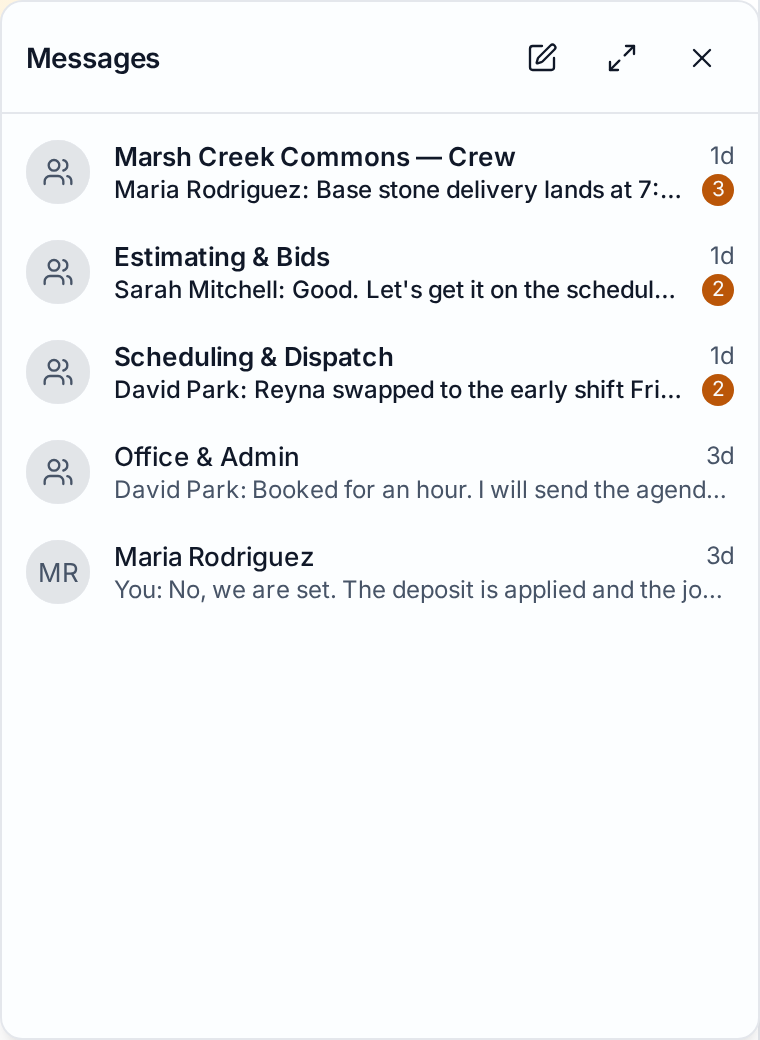
Inside a conversation, Back to conversations returns to the list, and Conversation options lets you Leave conversation.
Start a conversation
Section titled “Start a conversation”-
Choose New conversation.
-
Pick Direct message for one person, or Group for several. For a group, give it a Group name (for example Field crew).
-
Use Search people… to find teammates and select them.
-
Choose Start chat or Create group.
In a conversation
Section titled “In a conversation”Messages support reactions, replies, and editing or deleting your own messages. Opening a conversation clears its unread count everywhere — the tab, the sidebar row and the list.