

Your account and settings
Appearance and color theme, your account page and notification settings, what the Settings page holds, your company's name, logo, brand color and time zone, and where its locations are managed.
Appearance and theme
Section titled “Appearance and theme”Choose your avatar at the right end of the top bar, then Appearance and theme. Changes apply immediately (there’s nothing to save) and follow your account to every device.
- Appearance: Light, Dark, or System (follows your device).
- Sidebar: Dark sidebar or Light sidebar. This group shows only while the app is light; in dark mode the sidebar is always dark.
- Theme: the accent color. Match organization uses your company’s color; or pick one for yourself: Opsidian, Safety yellow, Construction orange, Fire red, Marine navy, Ocean blue, Forest green, Teal, Burgundy, Violet, Slate.
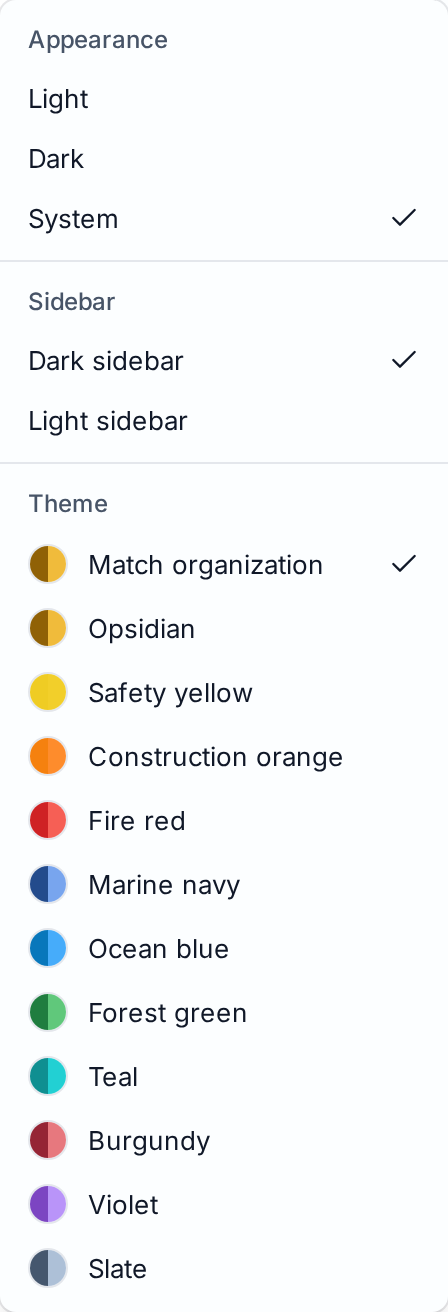
The user menu at the bottom of the sidebar also has a Dark mode / Light mode switch. It’s the same setting.
Your appearance also takes over the sign-in page as soon as you sign in, so the app opens in it straight away, even on a computer or phone you haven’t used before. The sign-in page then remembers it on that device.
Language on the crew app
Section titled “Language on the crew app”The crew app (the phone view your field crew uses) can be read in English or Spanish. Open the menu at the top left, and under Language choose English or Español. The change applies immediately.
- The choice is saved on that phone, not on the account. On another phone, choose it again.
- A phone whose own language is Spanish opens the crew app in Spanish without anyone choosing.
- Names and notes your team typed, such as job names, stay as they were written.
Every crew screen is translated: the menu and tabs, Today with the time clock, My week, Jobs and each job’s page, Crew, Timesheet and Truck. Times, dates and quantities follow the language too. The one exception is the sentence you certify when you submit a timesheet, which stays in English until a Spanish wording is approved. The office app is in English.
Your account page
Section titled “Your account page”Open the user menu at the bottom of the sidebar and choose Account (/settings/account). It holds your name, your password, two-factor sign-in, your appearance and your notification settings. Only your name waits for Save at the top; everything else applies the moment you change it.
You can also change your password without signing in: use Forgot password? on the sign-in page — see Sign in.
Two-factor authentication
Section titled “Two-factor authentication”Two-factor authentication asks for a 6-digit code after your password, so a stolen password alone can’t get into your account. The Two-factor authentication section shows what you have set up and lets you add or remove it.
- Set up text message — enter your mobile number and choose Text me a code. Enter the code from the text and choose Turn on. Only US and Canadian mobile numbers can receive codes; message and data rates may apply. Your number is never shown in full, only as Number ending in 42. This button only appears when text-message codes are available for your account.
- Set up authenticator app — scan the QR code with an app such as Google Authenticator or Microsoft Authenticator, then enter the code it shows.
You can keep both. To remove one, choose Remove and prove you still have it: for an app, type its current code; for a text message, choose Text me a code and type the code that arrives.
Notifications
Section titled “Notifications”The Notifications section lists each kind of notice you can receive, grouped by where it comes from: Work assignments, Schedule, Approvals, Time off and Time clock alerts. Each row has two switches:
- In app — whether it shows up under the bell.
- Email — whether it is also emailed to you. Only work assignments are emailed today; a dash means that kind of notice is never emailed.
Each switch saves as soon as you flip it and changes only your own notifications, not anyone else’s.
- You only see the kinds of notice that can reach you. A part of the app your company doesn’t use is not listed, and alerts meant for approvers (for example Time clock alerts) appear only if you approve time.
- Repeated wrong PINs is always on, shown with a lock. It warns approvers when someone may be guessing PINs on a time clock tablet, so it can’t be turned off.
- Turning a notice off stops new ones. Notices you already received stay in your history.
The Settings page
Section titled “The Settings page”Open the user menu and choose Settings. The page lists the company settings your role lets you manage, each as a card. If you don’t manage any, it says You don’t have access to any settings yet. — that’s normal for most accounts.
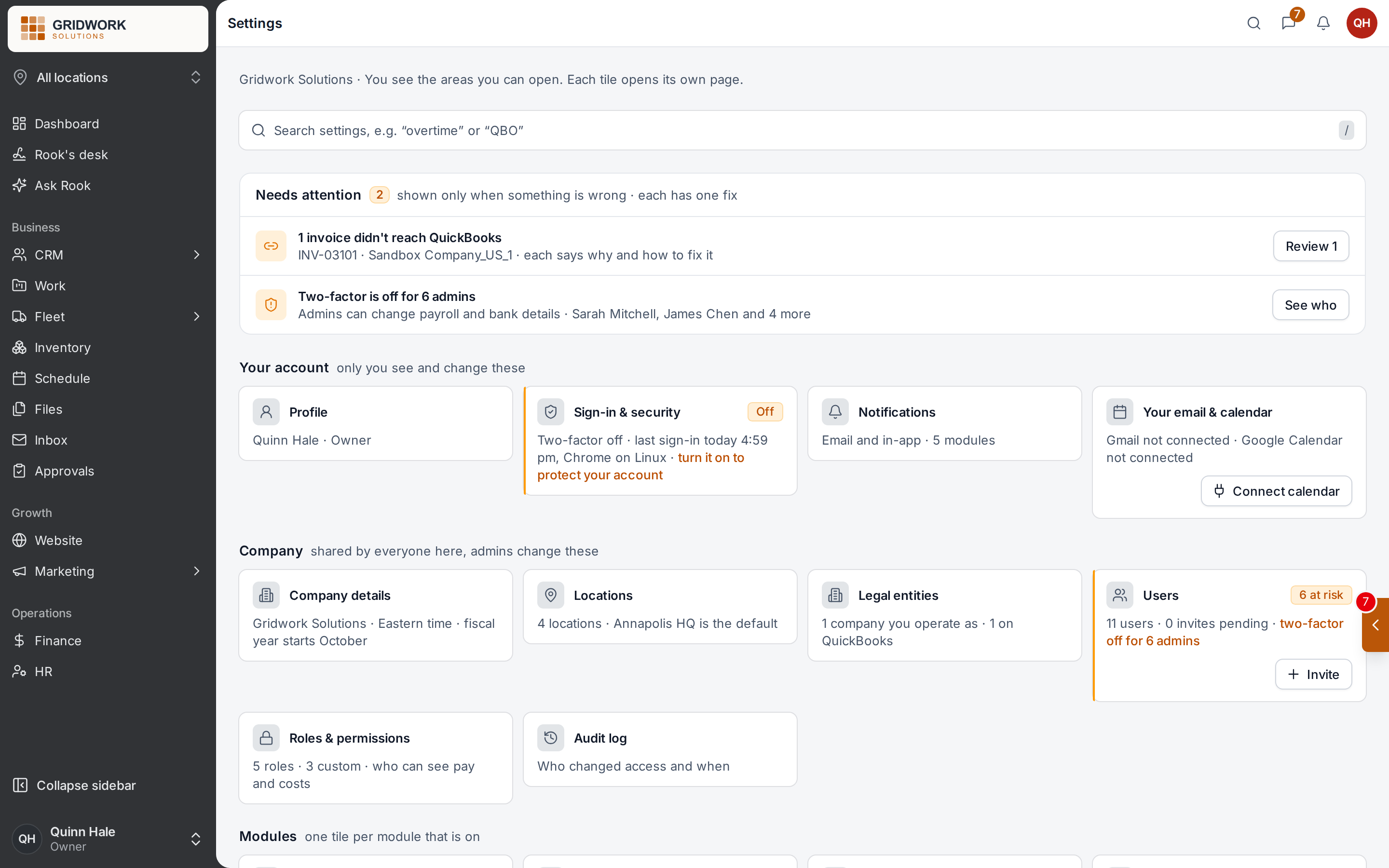
Settings that belong to a module live inside that module instead: Settings in the Finance panel, Settings in the HR panel, Automated emails under Website.
Company
Section titled “Company”Settings › Company (/settings/company) holds what identifies your business in the app: its name, logo, brand color and time zone. Change what you need, then choose Save at the top. Discard puts everything back.
The sidebar is dark unless someone picks a light sidebar for themselves, so the page takes two versions of your logo:
- For dark backgrounds — light or white artwork. This is the one your team sees in the sidebar every day.
- For light backgrounds — dark artwork, for white pages such as printed reports, the customer portal and the sign-in page.
Use a PNG or WebP with a transparent background. Under What the file shows, choose Full logo if the image already contains your company name, or Symbol only to have the name written beside it.
How it looks shows both as you work. If you add only a logo for light backgrounds, the sidebar shows it on a white plate.
Brand color
Section titled “Brand color”Pick one color. Opsidian builds the buttons, links and the marker beside the page you are on from it, in a light and a dark version that stay readable, and shows both under Preview before you save.
Two kinds of color can’t be saved, and the page says which:
- A color too close to gray — black, white and grays have no hue to build from. Pick a more saturated one.
- A color whose sidebar marker would be too faint on the dark sidebar. The page shows the contrast it measured; it needs at least 3:1.
Each person can still pick their own accent color under Appearance and theme. Match organization there follows the color you set here.
Time zone
Section titled “Time zone”The company time zone is the clock the whole business runs on. Money dates follow it: what counts as today, when an invoice is due or overdue, and where a pay period starts and ends.
Because of that, picking a different zone asks you to confirm before it is even staged, and nothing changes until you Save. Dates already written on invoices and timesheets stay as they are.
Locations
Section titled “Locations”Settings › Locations is where the business locations your team works out of are managed. They matter because the location switcher at the top of the sidebar, under your logo (All locations, or one branch) uses this list to decide what every page shows.
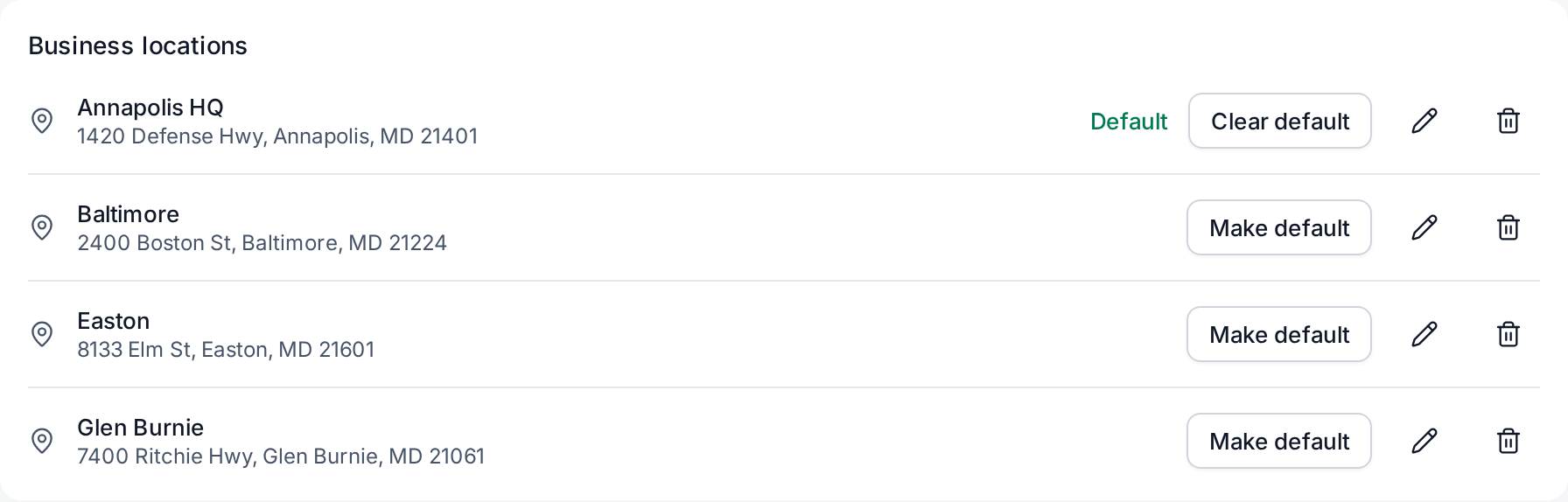
-
Choose Add location (or the edit button on an existing row).
-
Enter a Name (for example Annapolis) and an Address — the field suggests matches as you type.
-
Leave Active on. Turning it off keeps the location’s history but hides it from the switcher.
-
Choose Add location or Save changes.
To retire a location, use its archive button and confirm Archive this location? Archived locations show an Inactive tag and disappear from the switcher.