

Notifications
The bell in the top bar, what lands in it, and the full history page.
Notifications are how Opsidian taps you on the shoulder: a task assigned to you, a request waiting for your approval, a reminder from the schedule. They collect under the bell in the top bar, just left of your avatar, with a count of how many you haven’t read.
The panel
Section titled “The panel”Click the bell. The panel lists your notifications under Today, Yesterday and Earlier, newest first. Unread ones are marked. Hover a time to see the full date.
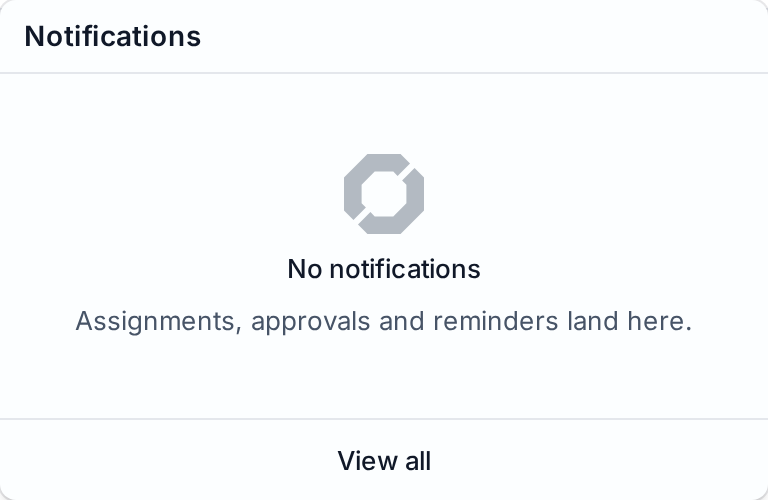
- Click a notification to mark it read and jump to the thing it’s about — the job, the approval, the conversation. The panel closes.
- Mark all read (top right of the panel) clears the count in one go. It only appears while something is unread.
- View all at the bottom opens the full history.
When there’s nothing, the panel says No notifications — Assignments, approvals and reminders land here.
The history page
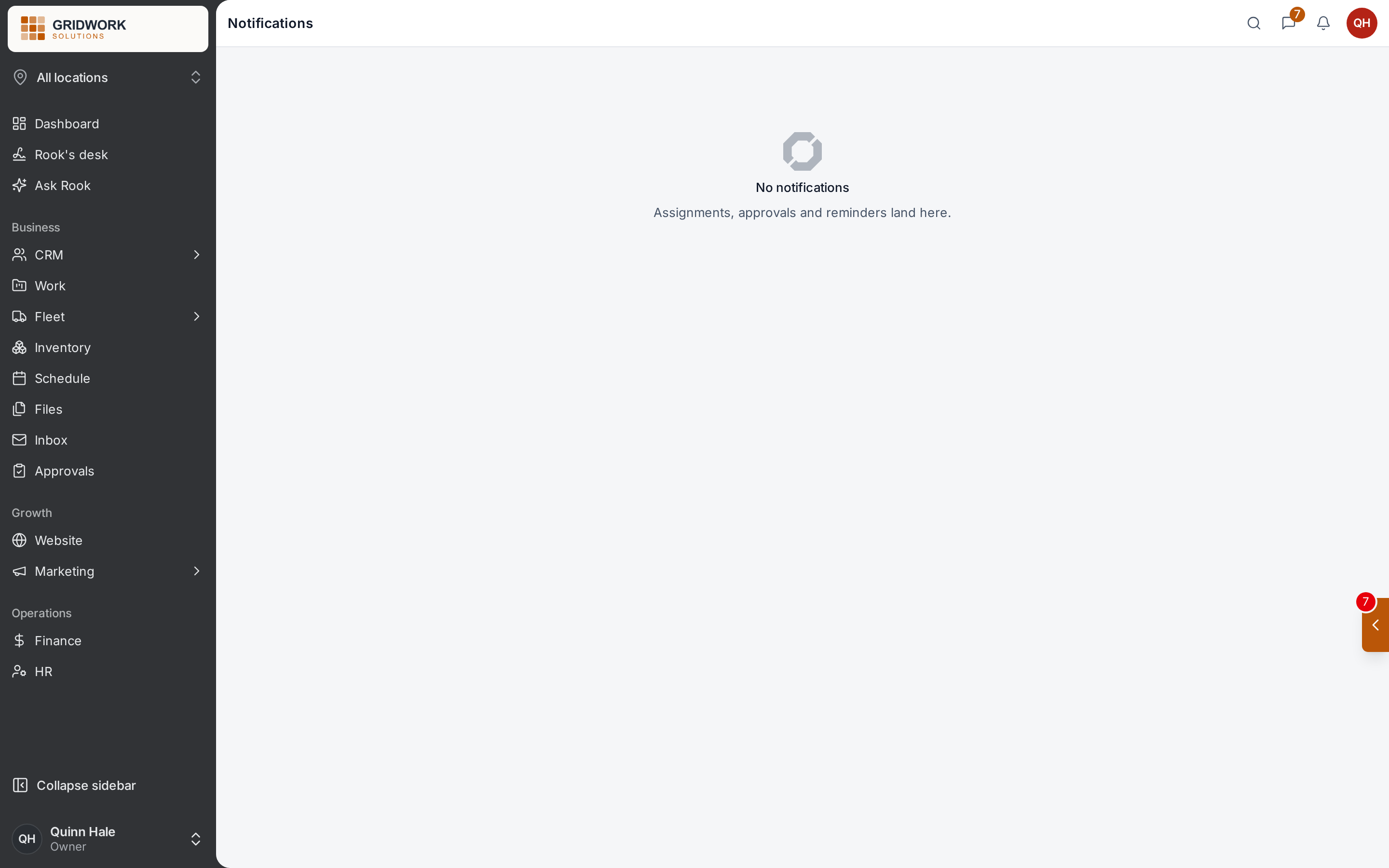
Section titled “The history page”View all takes you to Notifications, the complete archive, in the same Today / Yesterday / Earlier groups. Choose Load more at the bottom to go further back. Clicking a row works the same way as in the panel, and Mark all read is available in the page header while anything is unread.
Approvals
Section titled “Approvals”- A request needs your decision. When someone files a request you’re allowed to decide, such as a client update Rook drafted for a job, you get Approval needed with the request’s summary. You never get one for a request you filed yourself.
- Your request was decided. Once a request you filed is approved or rejected, you get Approved or Rejected, along with the approver’s note if they left one. If a request needs more than one approval, nothing arrives until the last approval is in.
- Time corrections arrive in their own words (Time correction requested). When one is decided, the person who filed it gets the same Approved or Rejected notice.
New email
Section titled “New email”- New mail in a mailbox you can see arrives as a notice titled with the sender’s name, with the subject underneath. Click it to open that conversation in the Inbox.
- One notice per conversation. A burst of replies on the same email thread becomes one notice that says how many new messages came in, not one per message.
- Only mail you could already read. A mailbox connected as private notifies only the person who connected it. A shared mailbox notifies everyone in your company who can read email.
- No ping for bulk mail. Mail Gmail files under Promotions, Social, Updates or Forums, mail you sent yourself, and mail already read on another device don’t notify. Connecting a mailbox doesn’t either: its existing mail is loaded quietly.
- The Inbox link in the sidebar shows how many conversations have unread mail. It updates every minute, and when you come back to the app or move to another page.
- Turn new-email notices off under Account › Notifications, in the Email group.
On your phone
Section titled “On your phone”On the crew app (crew.opsidian.com or the Opsidian crew app), open the menu and find Notifications on this phone. Flip the switch to have notices pop up on the phone even when the app is closed. The phone asks your permission the first time; Opsidian never asks on its own.
- Tapping a notification opens the page it’s about: the job, your week, or Today.
- Turn it off with the same switch. Signing out also stops notifications on that phone.
- iPhone and iPad only show web notifications from the home screen: in Safari tap Share, then Add to Home Screen, and open Opsidian from there.
- Blocked by this phone means notifications were refused in the phone’s or browser’s settings. Allow them for the site there, then come back to the menu.
- During your quiet hours, phone notifications wait and arrive when quiet hours end. Urgent ones still come through, and the bell always updates.
Good to know
Section titled “Good to know”- Notifications follow your account, so you see the same list on every device.
- You choose which kinds of notice reach you, in the app and by email, under Account › Notifications — see Your account page.