

Ask Rook
The built-in assistant that answers questions about your own jobs, hours, money and customers — beside the page or in a full chat.
Rook is Opsidian’s assistant. Ask it a question in plain language — which invoices are overdue?, who worked the most hours last week?, what’s on the calendar Thursday? — and it answers from your company’s actual data, showing its working. It can only see what you can see.
Beside the page
Section titled “Beside the page”-
On any page, press Ctrl . (⌘ . on a Mac). Press it again to close the panel.
-
A panel named Rook docks to the right edge and the page slides over to make room. Nothing is covered, so you can keep reading the numbers you’re asking about. A new conversation opens with Ask about this page: Rook can see you’re on <this page> — ask about it, or anything else in your business.
-
Type into Ask Rook anything… and press Enter. Shift Enter starts a new line; Esc stops an answer that’s still being written, and so does Stop generating.
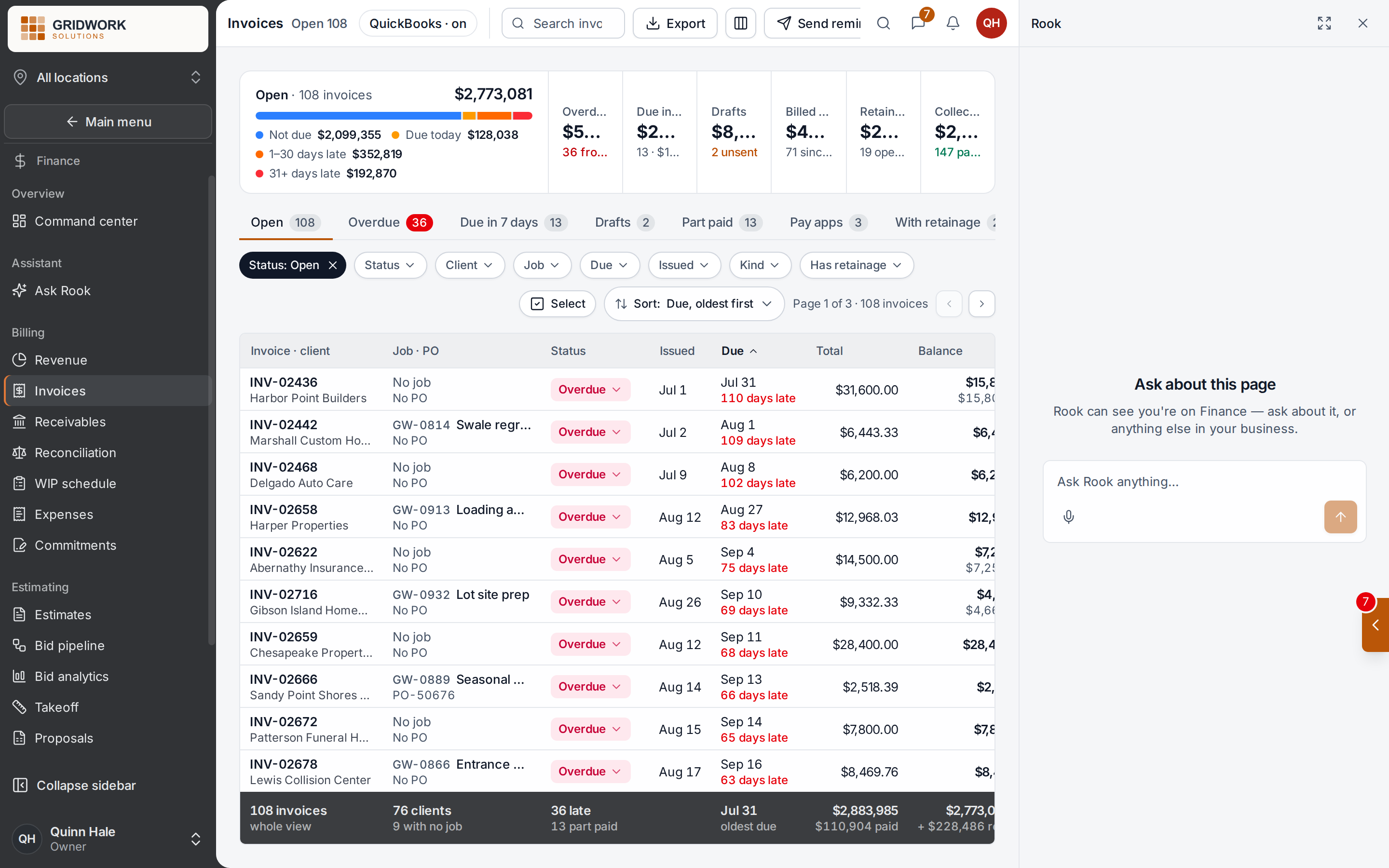
Closing the panel (Close Rook, the cross in its header) keeps the conversation; open it again and you pick up where you left off. Open full view, the expand button beside it, hands the same conversation over to the full chat page.
The full chat
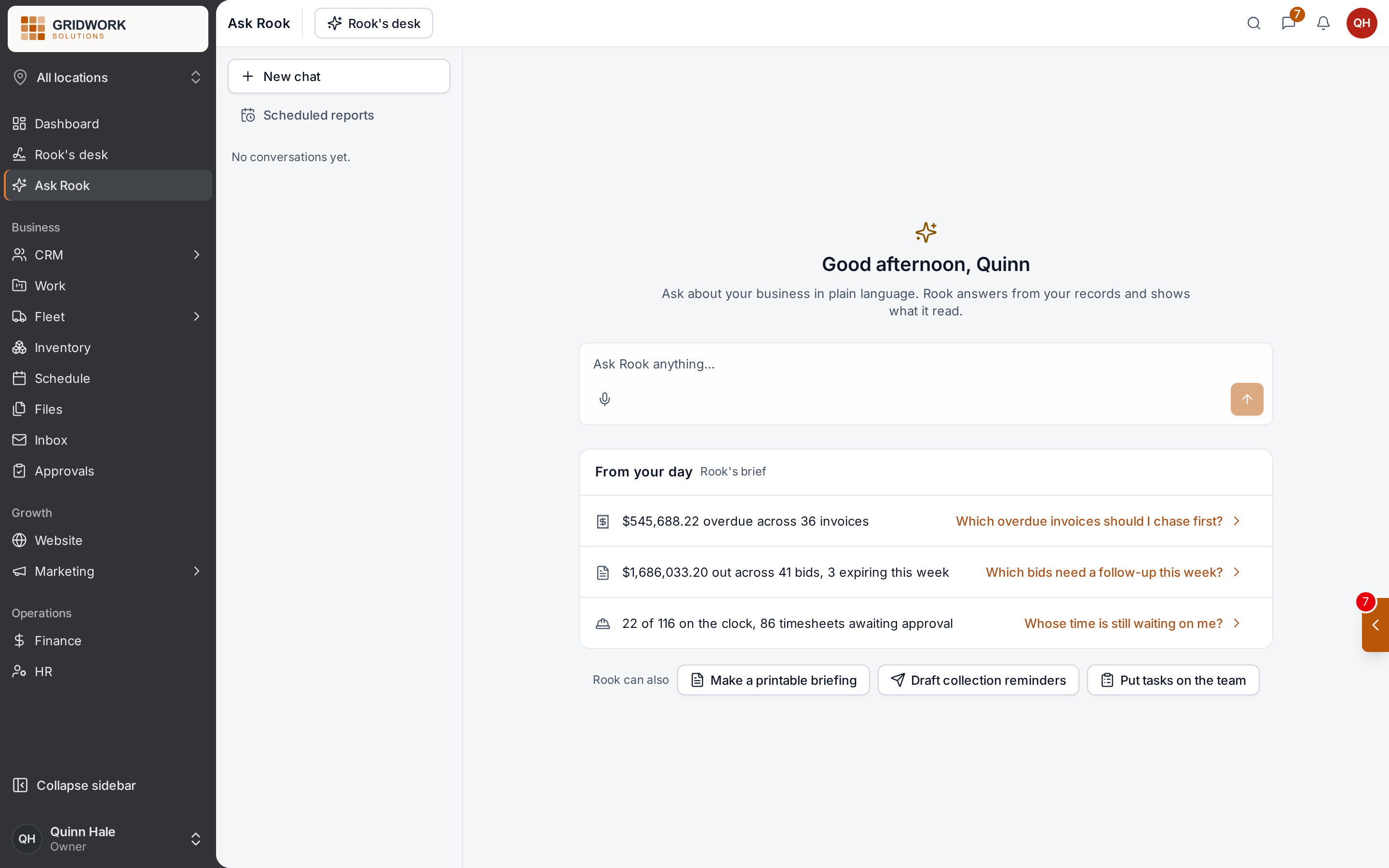
Section titled “The full chat”Choose Ask Rook in the sidebar, or Open full view from the panel. On the left are your past conversations. New chat starts a fresh one; hover a conversation for a small menu to Rename or Delete it. Rook’s desk at the top of the page opens what Rook has prepared for you to review.
A new conversation greets you and, under the Ask Rook anything… box, offers starting points:
- From your day lists what today’s brief says needs you, such as overdue invoices or timesheets waiting for approval, each with a question to ask about it (Which overdue invoices should I chase first?). Choose the question to ask it.
- When there’s no brief, plain questions take its place: What’s on my to-do list today?, Which invoices are overdue?, What’s in our bid pipeline? and What’s on the calendar this week?
- Rook can also offers Make a printable briefing, Draft collection reminders and Put tasks on the team.
The dashboard’s ask fields bring your question here too.
While Rook works it says what it’s doing, such as Checking invoices… or Pulling it together…. If you scroll up mid-answer, the Jump to latest button takes you back down.
What an answer was read from
Section titled “What an answer was read from”When Rook opens a specific job, estimate, invoice or file to answer you, the finished answer ends with a Read: line naming each one — Read: 1001 Roof, Invoice INV-77, scope.pdf. Choose a name to open that record’s own page and check the answer against it. The line stays with the answer, so it is still there when you reopen the conversation later, and it works the same beside the page.
A name on that line is only ever something you could already open yourself. An answer drawn from a broad total (how much is overdue?) may have no Read: line, because no single record was opened for it.
Reports
Section titled “Reports”Some answers come back as a report card rather than a paragraph — a formatted document with sections and figures. From a report card you can:
- Open report to read it in full.
- Download report as PDF.
- Save to Files: pick a folder and a file name, and the PDF is filed there for everyone who can see that folder. The button then reads Saved to Files.
Reports on a schedule
Section titled “Reports on a schedule”If your role allows it, Scheduled reports (under New chat on the Ask Rook page) lets you have Rook write a report for you daily, weekly, monthly or quarterly and file it in Files automatically. Choose New scheduled report, give it a Report name, tick the Sections it should cover, pick a Cadence and Run time, choose where it should Save to, and create it. Each report’s page lists its Recent runs with a Download report button per run; the Enabled switch pauses or resumes it instantly.
Asking about estimates and the price book
Section titled “Asking about estimates and the price book”Rook can open an estimate the way the estimate page does: its sections and line items, the overview with the linked job and client, the attached files, the tiers and alternates you offered, and the materials it needs from stock. It can also read a proposal, its versions and what proved the client said yes, and look things up in the price book. A few things to try:
- What’s in the Harbor Club estimate?
- What would the composite decking upgrade add to that bid?
- Where does the Smith estimate stand, and what’s the next step?
- What do we pay for 2x6 treated decking, and who do we buy it from?
- Has the price of rebar changed this year?
- Which proposal template should I use for a unit-price bid?
- How many jobs would the QuickBooks invoice export pick up for October?
Costs, margins, markups and labor and equipment rates are shown only if your role can see estimate costs. Without that access Rook still answers with prices and quantities, and tells you the cost side isn’t shown to you. If you work from one location, Rook reads that location’s estimates; the price book is shared by the whole company.
Asking what your files say
Section titled “Asking what your files say”Rook reads the text inside the PDFs, Word and Excel files, spreadsheets and photos you upload, not only their names. Ask it what a document says and it quotes the passage and names where it came from, with the page for a PDF — Retainage is five percent of each progress payment (msa.pdf, page 4). The Read: line lists each file it quoted, with the pages. A few things to try:
- Where does the contract on the Smith job say anything about retainage?
- Which permit mentions the setback from the lot line?
- In the spec book for the Harbor job, what does it say about the roof membrane?
You can point Rook at one file, a job’s files, or a folder, and it searches just those. It only searches files you can open on the Files page, and finding a job’s files needs the same job access as the Files page’s job filter. Scanned PDFs that are pictures of pages, and older .doc and PowerPoint files, can’t be read yet.
Asking about jobs
Section titled “Asking about jobs”Rook can open the same Work pages you can: a task, a phase, a deliverable and its send history, a job’s crews, its budget changes, and its schedule against the saved baseline. A few things to try:
- How far has the Smith job slipped against its baseline?
- Which jobs have no crew booked next week?
- Who was on site at the Harbor job yesterday, and for how long?
- Can we pour on the Smith job Thursday? — Rook checks the forecast against your weather limits.
- Was it too windy on Tuesday? — Rook reads the weather recorded on the job, not the forecast.
- When did we send the as-builts, and to whom?
Hours on site need access to HR, coverage needs access to the calendar, and budget changes need access to job costs, the same as on the pages.
On a record page
Section titled “On a record page”Many record pages carry a Rook on … card with a few sentences on where that record stands, written from the same figures the page shows, with a From … line naming what Rook read. These pages have one:
- A lead: its stage and value, how long since anyone reached out, and the estimates started from it.
- A contact: the accounts they’re on, when they were last in touch, and any lead of theirs that has gone quiet.
- A company: leads won and lost, jobs, estimates waiting on an answer, and the main contact.
- An estimate, on its Overview tab: where it stands with the client, its price, the bid date or proposal deadline, and anything waiting on you, such as an accepted estimate that isn’t a job yet.
- An invoice: who it’s for, what’s paid and owed, and how many days late it is.
- A fleet unit: where it is and who has it, when it’s free, its next service and any papers about to expire.
- A stock location: how much it holds, what’s running low, and when it was last counted.
Money appears in a summary only when your role can see that money on the page: estimate costs and margin need estimate costs, an account’s balance needs finance, a location’s stock value needs inventory costs. The ask box under the summary still works as before. If your plan doesn’t include Rook, or Rook can’t write the summary just then, the card shows only the ask box.
Ask about the schedule
Section titled “Ask about the schedule”Rook reads the Schedule the way the board does, so the answers match what you see there:
- What is crew B doing Thursday? or Who is idle next week? — the crew-by-day plan, with double bookings called out.
- If I move crew B to Friday, does anything clash? — the same conflict check the board runs before you save: double bookings, time off, working hours, job dates and weather.
- It’s going to rain Thursday, what are my options? — suggested moves, each already checked. Rook only suggests; you move the bookings on the Schedule yourself.
- What am I on this week?, Who moved this booking?, What holidays do we have this year?, What are our weather limits for roofing?
Rook only sees the crews and jobs you can see on the board. The conflict check and suggested moves need you signed in, so they aren’t available inside a scheduled report.
Summaries on expenses, budgets, people and purchase orders
Section titled “Summaries on expenses, budgets, people and purchase orders”These pages also open with a few sentences from Rook, with a From … line naming what it read:
- An expense or bill: what it is, who it’s from, what it costs, and what still needs attention before you approve it, such as a missing receipt, no job, a possible duplicate or a second signature. If your role can see job costs, it also says what approving does to the job’s budget.
- A job’s Budget tab: how much of the budget is spent and what is left, the sections running over their estimate, and whether billing is behind the work. This one needs both finance cost and job money access.
- A person in HR: their department and crew, and certifications that have expired or run out in the next 30 days. It never mentions pay, hours or time worked, and it doesn’t read or change time records.
- A purchase order with nothing to draw on its timeline yet, such as a draft: who it’s from, what’s on it, where it’s going and when it’s due. The order total appears only if your role can see inventory costs.
If your plan doesn’t include Rook, or Rook can’t write the summary just then, the card shows only the ask box.
Good to know
Section titled “Good to know”- Rook answers with your data and shows the figures it used. If a number matters, it’s right there to check.
- Rook can see the page you’re on, so “why is this job over budget?” works without pasting anything in.
- Rook can read an email you could open yourself, one message at a time, so “what did Dana say about the start date?” gets an answer from the email itself. It treats an email’s text as what the sender said, never as instructions. Very long emails are read up to a point, and Rook tells you when it only read the first part.
- In team chat, Rook can tell you who is in a conversation and find a teammate by name or email. It only sees conversations you’re part of.
- Ask about the fleet the way you’d ask the yard: which units are overdue for service?, how long was the excavator down this year?, when does Truck 14’s insurance run out?, what’s on the service truck kit? Cost questions — what did Truck 14 cost each job last month? — answer only if your role can see costs, and only for the units in your branch.
- If your website runs on Opsidian, Rook can read your bookings and their history, which days are open or blocked, your form submissions — including everything a customer wrote in an estimate request — and the bookings and forms insights. “What did the Park estimate request ask for?” and “Is July 4 still open?” both work. A day Rook says looks open is checked again when the booking is made.
- Rook knows your customer book the way the CRM pages show it: ask about one lead, client, contact or company (how long has the Ruiz lead sat in proposal?), who should I call today?, who works at Acme?, or how is the pipeline trending? — the figures match the page you’d open next.
- On a takeoff sheet, select a measurement and ask “why is this the number it is?”. Rook walks through the shape, the scale it was priced at, any deductions and the result, and links back to that measurement on the sheet. “Which sheets have no scale?” names every sheet in the plan set that cannot be measured yet. It shows the arithmetic; whether the shape was drawn in the right place is still yours to judge.
- It can’t change anything on your behalf — it reads, explains and drafts; you decide.