

Deliverables
The paperwork and proof you owe to get paid — permits, inspections, closeout packages, lien waivers — tracked per job.
A deliverable is something you owe someone before a job is truly finished: closeout paperwork, a permit, an inspection, a lien waiver, a photo report. Tracking them per job means nothing owed slips past the final invoice.
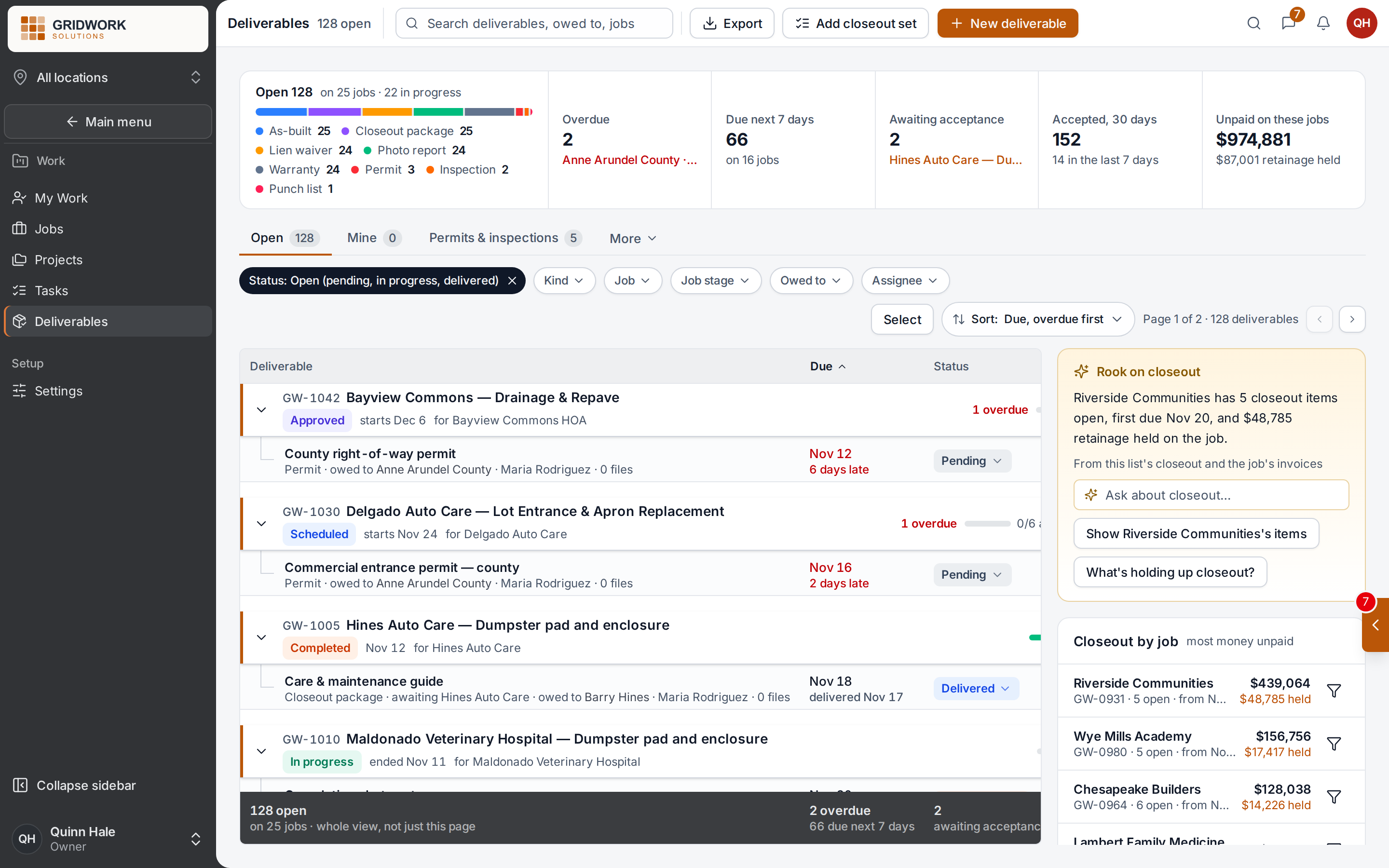
The list
Section titled “The list”Deliverables are grouped under their job; each row shows the kind, who it’s owed to, who’s on it, the due date and the status, with how many days late it is when it’s overdue. The band above the list counts the open items by kind and adds Overdue, Due next 7 days, Awaiting acceptance, Accepted, 30 days and Unpaid on these jobs; choose one to filter to it.
The tabs are Open, Mine and Permits & inspections, with Overdue, Due next 7 days, Awaiting acceptance, Accepted, 30 days, Accepted and All under More. Narrow further with Kind, Job, Job stage, Owed to and Assignee, and Sort by Due, overdue first, Name or Job. Select lets you act on several at once.
Beside the list, Rook on closeout answers questions such as What’s holding up closeout?, Closeout by job ranks jobs by money unpaid, and Who we owe and Due, next 14 days show what’s coming.
Kinds: Closeout package, Permit, Inspection, As-built, Warranty, Lien waiver, Photo report, Punch list, Other. Statuses: Pending, In progress, Delivered, Accepted.
Add deliverables
Section titled “Add deliverables”- New deliverable opens a form: pick the Job that owes it, then give it a Name, Kind, Owed to (e.g. City inspector, general contractor), Client (Same as job by default), Due date and Description (What’s owed, and any conditions for delivery.). Choose Add deliverable.
- Add closeout set adds the standard closeout items to a job in one go: Completion photo set, Workmanship warranty letter, Final lien waiver, As-built measurements and Care & maintenance guide. Each is due a number of days after the job ends, which you can change before adding them.
Export the list
Section titled “Export the list”Export downloads the deliverables you are looking at: the same view, search, filters and sort. Each row has the job, deliverable, kind, who it is owed to, assignees, due date, status and the delivered and accepted dates. It needs the Export work lists permission, and every export is recorded in the audit log with who took it, the filters and the row count. A list over 50,000 rows is refused rather than cut short: narrow the filters and try again.
The deliverable page
Section titled “The deliverable page”The header holds the next step for its status: Start, then Upload evidence until a file is attached, then Mark delivered…, then Record acceptance…. The ⋯ menu has Edit details and Archive deliverable. Under the name are shortcuts to the job, its phase and Estimate, and a band showing where it is in its lifecycle, the files attached, who it’s delivered to and when it was last sent.
On the page: Details (job, phase, kind, who it’s owed to, client, due date), People, Feeding tasks when tasks are linked, Deliver to, Submissions (every time it was sent), and its own files, notes and activity. The files that satisfy a deliverable attach right here.
Deliver it and record acceptance
Section titled “Deliver it and record acceptance”Mark delivered… asks who it was Delivered to, the day (Delivered on), How (By email, On the client portal, Handed over in person, By mail or courier or Another way) and an optional Cover note. Each send is kept as a numbered version under Submissions.
Record acceptance… records who accepted it, when and how. If they want changes instead, choose They sent it back… and enter Their comment; the deliverable goes back to In progress.
Photo set
Section titled “Photo set”A photo report (or any deliverable with photos on it) shows its Photo set in three groups: Before, During and After. Photos not yet sorted sit under Not grouped yet. Each group has a Pick photos button that opens the job’s photos, newest first and grouped by day, so you can add what the crew already took instead of uploading it again. Each group opens on its own days: Before shows photos up to the job’s start, During the job’s planned span, After from its end. Clear the days (or press Clear filters when nothing matches) to see every photo on the job. Search by file name or change the days, tick the ones you want (Select day takes a whole day), choose the group under Add to, and press the add button, which counts what you ticked (Add 3 photos). Add photos on the card uploads new ones instead.
Picked photos stay on the job. Adding them here only attaches them to the deliverable, and removing one from the deliverable later takes it off the deliverable without deleting it from the job. A photo that was uploaded here and lives nowhere else still goes to Deleted when you remove it.
Good to know
Section titled “Good to know”- The working rhythm: Start it while you chase it, Mark delivered… when it’s handed over, Record acceptance… when the other side signs off. Acceptance is what clears it from the open list.
- Archive deliverable asks for a reason and keeps the record.