

Tasks
The company-wide task list with its views and filters, adding a task, and the task page with its checklist.
Tasks are the day-to-day to-dos inside jobs and their phases. This page is the company-wide list; your own slice also lives on My Work.
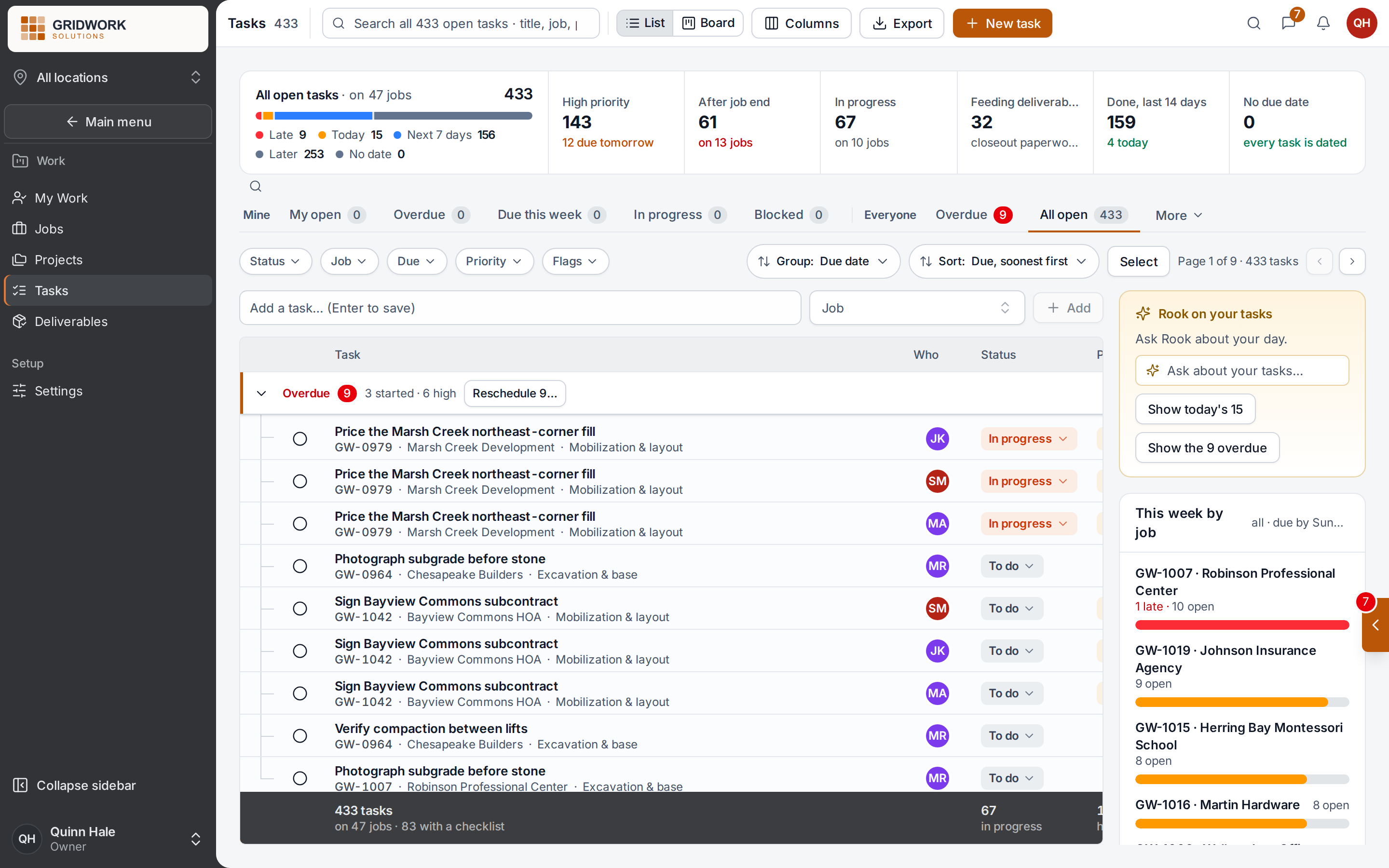
The list
Section titled “The list”Columns: Task (with its job and phase), Who, Status, Priority, Due, Phase, Updated and Created by; Columns hides the ones you don’t need. The search box finds a task by title, job or phase. Statuses: To do, In progress, Blocked, Done. Priorities: Low, Medium, High, Urgent; a blank priority means Medium.
The band above the list counts the open tasks by when they’re due (Late, Today, Next 7 days, Later, No date) and adds High priority, After job end, In progress, Feeding deliverables, Done, last 14 days and No due date. Choose any of them to filter the list.
The tabs are saved views. Under Mine: My open, Overdue, Due this week, In progress and Blocked. Under Everyone: Overdue and All open. More adds Unassigned, Feeds a deliverable, Done, last 14 days, All tasks and Archived. Narrow further with Status, Job, Due, Priority and Flags.
- Group sorts the rows under due-date headings (overdue first), or choose No grouping.
- Sort orders them by Due, soonest first, Priority, most urgent first, Recently updated, Title or Newest first.
- List and Board switch between rows and a board by status.
- The circle at the start of a row marks the task done; the status on a row is a menu to move it.
- Select lets you tick several tasks and Mark done, Reassign…, change their Due… date, Priority or Status together. Moving due dates asks why, and the reason is kept on each task.
Beside the list, Rook on your tasks answers questions about them, This week by job shows which jobs have the most due, and Team load and Done today show who has what.
Export the list
Section titled “Export the list”Export downloads the tasks you are looking at: the same view, search, filters and sort. Each row has the task, job, client, phase, status, priority, due date and time, who it is assigned to and the checklist progress. It needs the Export work lists permission, and every export is recorded in the audit log with who took it, the filters and the row count. A list over 50,000 rows is refused rather than cut short: narrow the filters and try again.
Add a task
Section titled “Add a task”For a quick one, type into Add a task… (Enter to save) above the list, pick the Job, and press Enter.
For the full form:
-
Choose New task at the top of the list (or on a job’s Schedule tab).
-
Give it a Title (the only text you must write) and pick the Job it belongs to. If your role allows it, you can make it an office task with no job instead.
-
Optionally pick a Phase, a Due date and time, who it’s Assigned to, a Priority, and the deliverable it Feeds.
-
Choose Create task (or press Ctrl Enter).
On a job’s Schedule tab you can also Attach existing tasks, or, on jobs that came from an estimate, Draft tasks from estimate and let Rook propose a starting list, which you review before anything is created.
The task page
Section titled “The task page”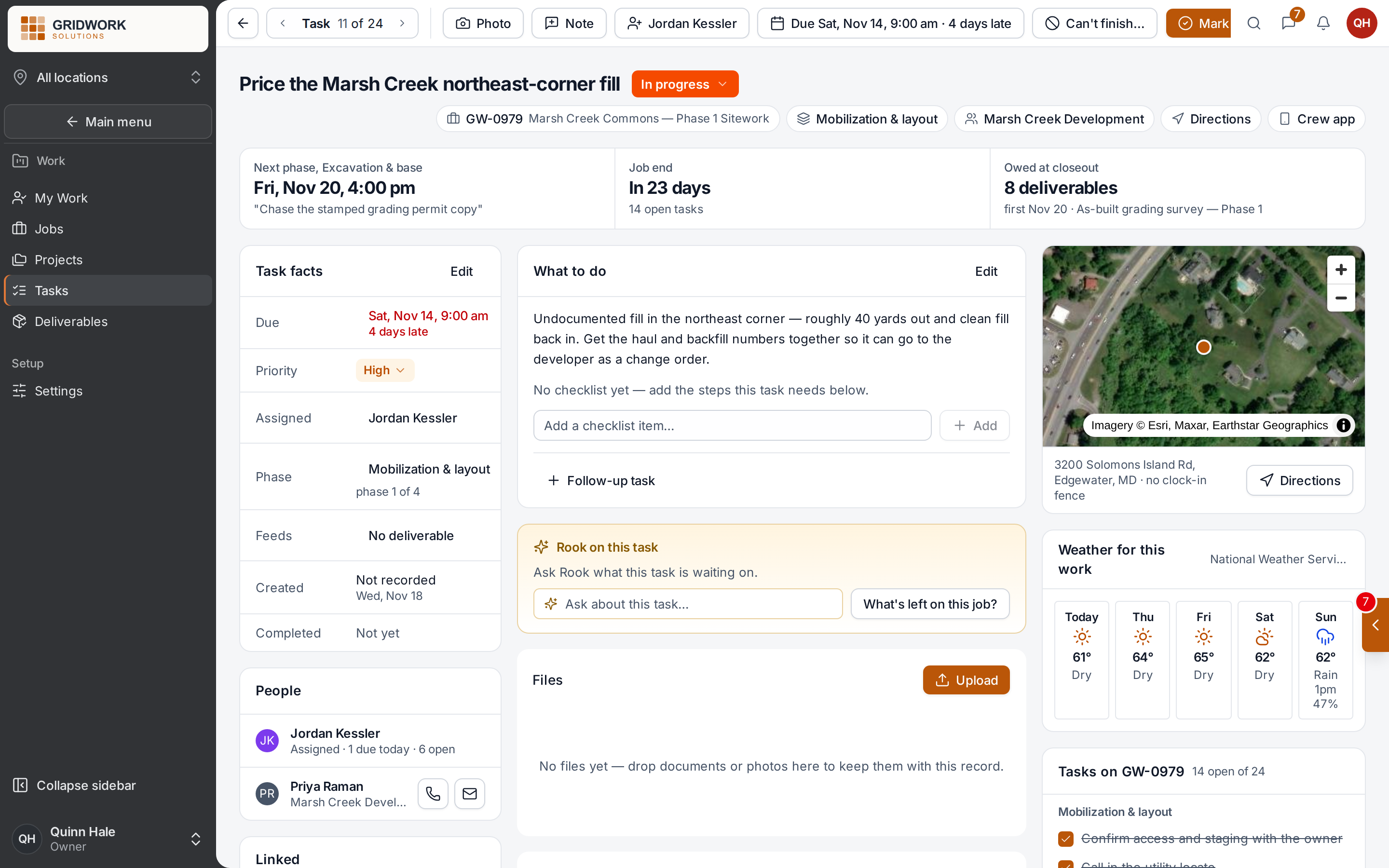
The header steps through the list you came from, and holds the quick actions: Photo, Note, the assignee (choose it to change who’s assigned), the due date, Can’t finish… to mark the task blocked with a reason, and Mark done. The ⋯ menu has Edit task, Follow-up task on this job and Archive task….
Under the title is the status, which you can choose to move the task, and shortcuts to its job, phase, client, Directions and the Crew app. A band of figures shows what’s around the task: the next phase, when the job ends, and what is owed at closeout.
On the page:
- Task facts: Due, Priority, Assigned, Phase, Feeds, Created and Completed.
- What to do: the description and the checklist. Type into Add a checklist item… to add a step.
- People and Linked: who’s on it and the records it belongs to.
- Rook on this task: a few sentences on where the task stands: what it’s waiting on, when it’s due and who has it, with what Rook read it from underneath. Ask about the task, or choose a suggested question such as What’s left on this job? If your plan doesn’t include Rook, or Rook can’t write the summary just then, the card shows only the ask box.
- The task’s files, notes and activity, a map of the site, Weather for this work, and the other tasks on the job.
Good to know
Section titled “Good to know”- Assignees can work without office permissions: someone assigned to a task can tick its checklist, post notes and photos, and mark it done even if their role can’t edit jobs. Editing the task and changing its checklist steps stay with people who can edit jobs.
- If you mark a task done with checklist steps still open, you’re asked first, and can choose Mark done anyway.
- Archive task… asks for a reason and takes the task out of the lists. Archived tasks are kept, with the reason, and can be found under More › Archived.